Share or print your family tree
On this page
Kindred can turn your whole family tree into one poster, ready to send to relatives, keep as a file or print for the wall. On iPhone, iPad and Android you share it as an image or a PDF; on the web you download an image or print it (which also lets you save a PDF).
What the poster includes
The poster shows the family tree that’s open, with everyone in it, laid out the same way as on screen:
- A header with the Kindred logo, the family name, and the counts, for example “24 people · 6 on Kindred” (people in the tree, and how many of them are members on Kindred).
- Every person in the tree, each with their photo (or initials if they have none), first name, surname line and years. The surname line shows their surname, with their birth surname in parentheses when it’s different, for example “Smith (Brown)”. Years read like “1948–2019”, or only the birth year for someone living.
- People who have died appear in faded colors, as on the tree.
- The connecting lines in the family colors you see on the tree.
- A footer that says “Made with Kindred”.
The poster always uses light colors, even if your phone or browser is in dark mode, so it prints well.
What it doesn’t include: contact details, full dates, places, stories, documents, posts or messages. It only shows what’s on the tree cards. The tree’s background (dots, plain or photo) isn’t part of the poster either.
Note: The poster shows everyone in the tree, including living relatives’ names, photos and birth years. Think about who you send it to, and ask family members if they’re comfortable before posting it publicly.
Share from iPhone or iPad
- Open the Tree tab and make sure the right family is open. See Keep several family trees to switch.
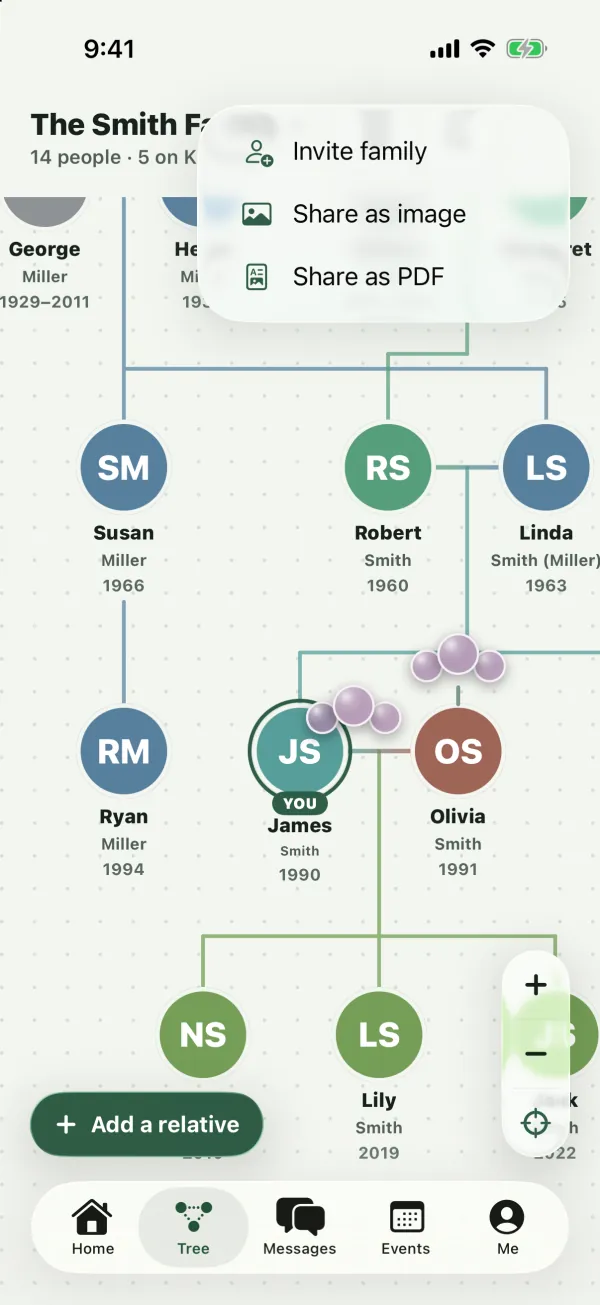
- Tap the round green share button at the top right of the tree (its label is Share the tree).
- Choose Share as image (a PNG picture) or Share as PDF.
- Wait a moment while Kindred draws the poster and loads everyone’s photos. A spinner shows on the button while it works.
- The share sheet opens. From there you can send it in Messages, WhatsApp or email, AirDrop it, save it to Files, save the image to Photos, or print it, depending on the apps on your device.
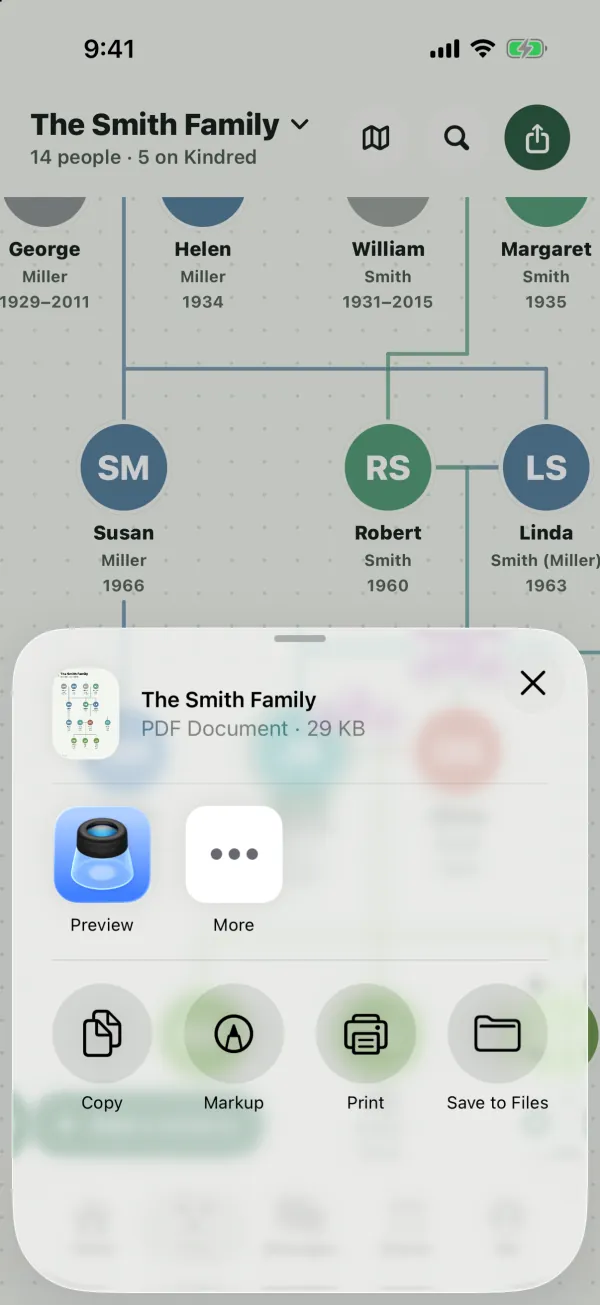
The file is named after the family, for example “The Smith Family.png” or “The Smith Family.pdf”. The PDF is a single page sized to fit the whole tree.
The same menu also has Invite family, for owners, admins and collaborators. See Invite your family.
Share from Android
- Open the Tree tab and make sure the right family is open.
- Tap the round green share button at the top right (Share the tree).
- Choose Share as image or Share as PDF.
- When the poster is ready, Android’s share menu opens. Pick an app to send it, or save it to your files or drive, depending on what’s installed.
As on iPhone, the file is named after the family and the PDF is a single page.
Download or print on the web
- Open the tree page at kindredplace.app/app and make sure the right family is open.
- Click Share at the top of the tree.
- Choose one of:
- Download as image: saves a PNG file named after the family, for example “The Smith Family.png”, to your downloads.
- Print or save as PDF: opens your browser’s print window with the poster on its own page. Pick a printer, or choose Save as PDF (the wording depends on your browser) to keep a PDF file.
The web Share menu also has Invite family (for owners, admins and collaborators), and for owners and admins, the tree background options.
Tip: For a big tree, print in landscape or on a larger paper size, and check the scaling options in the print window. The poster is scaled to fit the page width.
If a photo can’t be loaded, the web poster shows that person’s initials instead, so the poster is still created.
Who can share the tree
Everyone in the tree can create the poster, including viewers. Nothing changes in the tree when you do, and nobody is notified. The file you create is yours to send; anyone you send it to can see it without a Kindred account.
If you’d rather bring a relative into the tree itself, so they can see it live and add to it, send them an invitation instead. See Invite your family.
Common questions
Can I share only part of the tree?
No. The poster always includes everyone in the tree that’s open. To share one side of the family, you could start a separate tree for that branch with Start a family tree for. See Keep several family trees.
Can I share All families as one poster?
No. Sharing works on one tree at a time. Switch to each tree to share it.
Some photos are missing from my poster. Why?
Kindred loads each photo when it draws the poster. If a photo couldn’t be loaded (for example on a weak connection), that person shows their initials. Try again with a better connection.
The poster is very large. Is that normal?
Yes. The poster is as big as your tree, so a big family makes a wide image. On the web, very large trees are drawn at a slightly lower resolution to keep the file manageable.
Does the poster update when the tree changes?
No. It’s a snapshot of the tree at the moment you create it. Make a new one after adding people.
Can people I send it to edit the tree?
No. The poster is a picture. To let someone see and edit the live tree, invite them to join.