Keep several family trees
On this page
You can belong to as many family trees as you like: your own side, your partner’s side, or a tree you build for a friend. This article explains how to create, switch, rename and leave trees, how All families shows them together, and how the same person can appear in several trees and stay in sync.
Why keep more than one tree
Each family tree in Kindred is private and has its own members, people, feed, messages, events and edit history. A few common reasons to have several:
- Two sides of the family. One tree for your parents’ families and one for your partner’s, each with the relatives who care about it.
- A tree for someone else. You can build a tree for a friend or a parent without appearing in it yourself.
- A branch that grew big. You can start a separate tree for one person’s side of the family, copied from a tree you’re already in, and keep the two linked.
Your role is set per tree. You might be the owner of one tree and a viewer in another. See Members and roles for what each role can do.
Create a new family tree
Anyone with a Kindred account can create a tree, whatever their role in other trees.
- Open the tree menu or your list of families:
- On iPhone and Android: on the Tree tab, tap the family name at the top (it has a small down arrow), then tap New family tree. You can also go to the Me tab and tap New family tree under My families.
- On iPad: tap the family name at the top of the sidebar, then New family tree, or use the Me section.
- On the web: click the family name in the sidebar (on a phone-sized screen it’s at the top of the tree page) and choose New family tree. It’s also on the Me page under My families.
- Fill in the form:
- Family name (required), for example “The Smith Family”. It can be up to 120 characters.
- Description (optional).
- I’m part of this family. Leave it on to be added to the tree as the first person. Turn it off when you’re building the tree for someone else: you’ll manage the tree without appearing in it, and it starts empty.
- Tap Create family tree.
The new tree opens right away and you are its Owner. From there you can add relatives and invite family. See Add relatives and Invite your family.
Tip: If you have no trees yet, the welcome screen offers Start a family tree and Join with an invite code instead. See Start or join a tree.
Start a tree for one side of the family
If a tree you’re in already holds someone’s relatives, you can start a new tree for that person’s side of the family, without typing everyone again. The people come across linked, so the two trees stay in sync (see The same person in several trees below).
You need to be a collaborator, admin or owner in the tree you’re starting from. Viewers don’t see this option.
- Open the person’s page (on the web, select them on the tree to open their panel).
- Tap the More options button (the three dots) and choose Start a family tree for followed by their first name, for example Start a family tree for Robert….
- Check the Family tree name. Kindred suggests one from their birth surname (or their surname, or first name), for example “The Smith Family”. Change it if you like.
- Review who comes across. People are grouped as Them, Partner, Parents, Grandparents and earlier, Siblings, Children, Grandchildren and later, Other relatives and Partners of relatives. Everyone is selected at first; turn off anyone you want to leave out. The person themselves can’t be turned off.
- Tap Create.
What’s included: the person, their partners, all their ancestors, everyone descended from those ancestors (siblings, aunts, uncles, cousins), their own children and grandchildren, and the partners of all of these. Their partner’s own family is not included; that belongs to the partner’s side.
What happens next:
- The new tree opens, centered on the person you started from. You are its owner.
- Relationships between the people you chose come across too.
- Family members who are on Kindred and linked to someone you chose are added to the new tree as collaborators. In the list they’re marked as on Kindred and joining as a collaborator. They get a notification that you started the tree and added them.
- A child account (under 13) is only added together with one of their parents or guardians. See Kids and parents.
Switch between trees
Kindred shows one tree at a time. The tree you open last is the one you see next time.
- On iPhone and Android: on the Tree tab, tap the family name at the top and pick another tree. The current one has a check mark.
- On iPad: tap the family name at the top of the sidebar.
- On the web: click the family name in the sidebar, or at the top of the tree page on a small screen.
- Anywhere: in the Me tab, tap a tree under My families. On the web the list also shows your role in each tree.
Under the family name you’ll see two counts, for example “24 people · 6 on Kindred”: the number of people in the tree, and how many of them are members with a Kindred account.
The feed, messages, events and history always belong to the tree that’s open.
Rename a family tree
Owners and admins can rename a tree. Everyone in the tree sees the new name.
- On iPhone or Android, tap the family name at the top of the Tree tab. On the web, click the family name in the sidebar (or at the top of the tree page on a small screen).
- Choose Rename family.
- Type the new name and tap Save.
The rename is recorded in the tree’s edit history as “updated the tree details”, with the old and new name.
Note: On iPad, the family menu in the sidebar doesn’t include Rename family. Use an iPhone, Android or the web to rename the tree.
All families: every tree in one view
When you belong to two or more trees, the family menu includes All families. It draws all your trees together as one big tree.
- On iPhone, iPad and Android: tap the family name, then All families.
- On the web: click the family name, then All families.
At the top you’ll see All families with the totals, for example “58 people · 3 families”. You can drag, zoom and use the center button as on the normal tree.
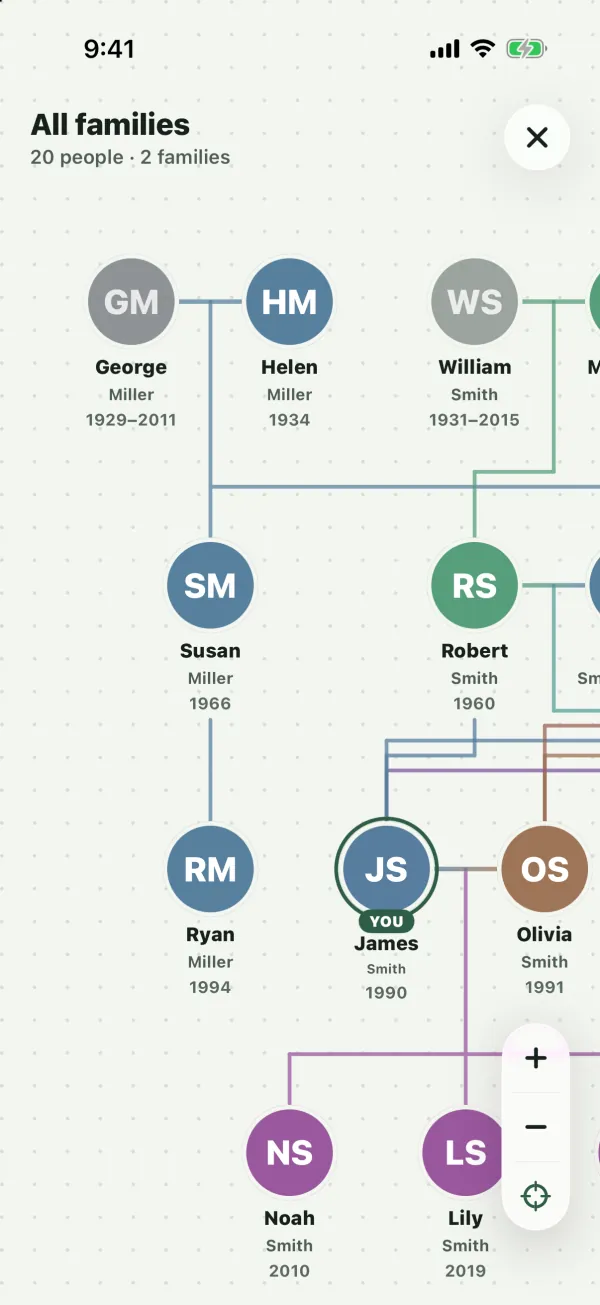
How it works:
- Someone who is in several of your trees is drawn once, as long as they are linked across those trees (or are the same Kindred member). Their connections from every tree are joined up, so you can see how your families meet.
- If one copy of a person has a photo or birth date and another doesn’t, the view uses what it has.
- All families is view only. Tap a person to see Open in followed by each tree they’re in. Choose one to open that tree centered on them, where you can view and edit them as usual.
- People who look alike but aren’t linked yet appear separately. Link them first (see below) if they’re the same person.
The same person in several trees
When you’re in more than one tree, Kindred notices people who appear in both. This only ever looks at trees you’re a member of.
Linked people
Two copies of a person are linked when they’ve been marked as the same person. This happens automatically when you start a tree from someone’s side of the family, when a new child or partner is copied across, or when you bring someone in with Add here. You can also link two copies yourself.
For a linked person:
- Details stay in sync. Names, birth surname, gender, dates, living or deceased, place of birth, where they grew up, occupation, story, email and phone are copied to every linked copy whenever someone edits them in any tree. A photo change, and an undo from the edit history, sync too. Each tree’s edit history records the change.
- Anyone who can edit the person in one tree can make an edit that reaches all their copies.
- New children and partners follow. When a child or partner is added to a linked person, they are copied into the other trees that have that person, already linked.
- New parents and siblings stay put. They belong to that side of the family, so they aren’t copied. Instead, the other tree offers them under Family in your other trees (see below).
- Connections stay in step. Adding or removing a relationship between two people who are both linked in another tree does the same in that tree.
- Deleting is per tree. Removing a linked person from one tree removes only that tree’s copy.
Where you’ll see it
- Bubbles on the tree. A small cluster of glassy bubbles above someone means they’re also in another of your trees. The bubbles take that tree’s color. Tap them to open the other tree centered on that person. If they’re in several trees, you’ll get a menu to pick one.
- Also in on the person’s page lists their other trees. A linked tree shows Synced. Tap a row to open that tree on them.
- In the edit form, a note under the fields reminds you which other trees will update when you save.
Link a likely match: Same person?
Kindred also points out likely matches that aren’t linked yet: the same Kindred member, the same email address, or the same first name and a shared family name (surname or birth surname) with no conflicting birth or death dates. Emails of children’s accounts are never used for matching.
A likely match appears under Also in with Same person?, and as bubbles on the tree. To link them:
- Open the person’s page and find the tree under Also in.
- Tap Link. You need to be allowed to edit this person.
- Choose which details to keep: Keep the details in this tree, or Use the details from the other tree. Every linked copy then takes those details. The photo comes from the copy whose details you kept, or from the other copy if that one has none.
Both trees’ histories record that the person was linked with another family tree.
Stop syncing a person
If two copies shouldn’t stay the same, open the person’s page, tap More options and choose Keep separate in this tree. This copy stops syncing; the copies in other trees aren’t changed. You need to be allowed to edit the person, and the option only appears when they’re linked. The history records that you stopped syncing them with other trees.
Family in your other trees: Add here
When a linked person has a parent, child or partner in another of your trees who isn’t in this tree yet, their page shows Family in your other trees, with the relative’s name, how they’re related and which tree they’re in. Tap Add here to bring them in, linked, with their connections to people already in this tree.
Owners and admins can add anyone offered here. Collaborators can add someone when they’d be connected to a person in their own branch.
Leave a family tree
Any member except the owner can leave.
- Go to Members: on iPhone, iPad and Android it’s in the Me tab under My families; on the web it’s a section on the Me page.
- Tap Leave this family.
- Confirm. The message reminds you: “Leave this family tree? You’ll need a new invitation to come back.”
What happens:
- The tree disappears from your list and Kindred opens another of your trees. If it was your only tree, you’ll see the welcome screen with Start a family tree and Join with an invite code.
- Your person card stays in the tree, but it’s no longer connected to your account.
- The tree’s history records that you left the family.
If you’re the owner
The owner can’t leave a tree. Hand it over first:
- In Members, open the menu next to the person who should take over and choose Make owner.
- Confirm “Make (name) the owner? You’ll stay on as an admin.”
- You’re now an admin, and Leave this family is available.
Delete a family tree
There’s no button to delete a family tree in Kindred today. If you no longer want to be part of a tree, leave it (as owner, hand it over first). If you need a whole tree removed, contact us through the support page.
When you delete your Kindred account, each tree you own passes to its longest-standing admin (or another member if there’s no admin). A tree with no other members is deleted along with everything in it. See Delete your account.
Common questions
Is there a limit on how many trees I can have?
No. You can create or join as many family trees as you like.
Do members of one tree see my other trees?
No. Each tree is private to its own members. The bubbles, Also in and All families only show trees that you yourself belong to, so other people only see the trees they’re in.
I edited my mother in my tree and her details changed in my partner’s tree too. Why?
She’s linked across the two trees, so her details stay the same in both. If you want the copies to be independent, open her page and choose Keep separate in this tree.
Why does someone appear twice in All families?
They aren’t linked between the trees yet. Open them in one of the trees, find the other tree under Also in, and tap Link if it’s the same person.
I added my grandfather in one tree. Why didn’t he appear in the other?
New parents and siblings aren’t copied automatically, because they belong to one side of the family. In the other tree, open the linked grandchild (or child) and use Add here under Family in your other trees.
Can a viewer start a new tree from a person?
No. Start a family tree for is available to collaborators, admins and owners. Anyone can still create a new, empty tree with New family tree.
What happens to my posts and messages when I leave a tree?
They belong to that tree and stay there. You won’t be able to see the tree again unless someone invites you back.