Find your way around the family tree
On this page
The Tree is the heart of Kindred: everyone in your family, generation by generation, connected by lines. This article explains what you see on each person, how the tree is arranged, and how to move around it, search it and open a person on iPhone, iPad, Android and the web.
Open the tree
- On iPhone and Android: tap the Tree tab at the bottom of the screen. With an Android phone on its side, the tabs move to a rail on the side of the screen.
- On iPad: tap Tree in the sidebar on the left.
- On the web: sign in at kindredplace.app/app and choose Tree in the sidebar (or in the tab bar at the bottom on a phone-sized screen).
When the tree opens, Kindred centers it on you, so the first face you see is your own. If nobody in the tree is marked as you yet, it centers on the first person in the tree.
What a person card shows
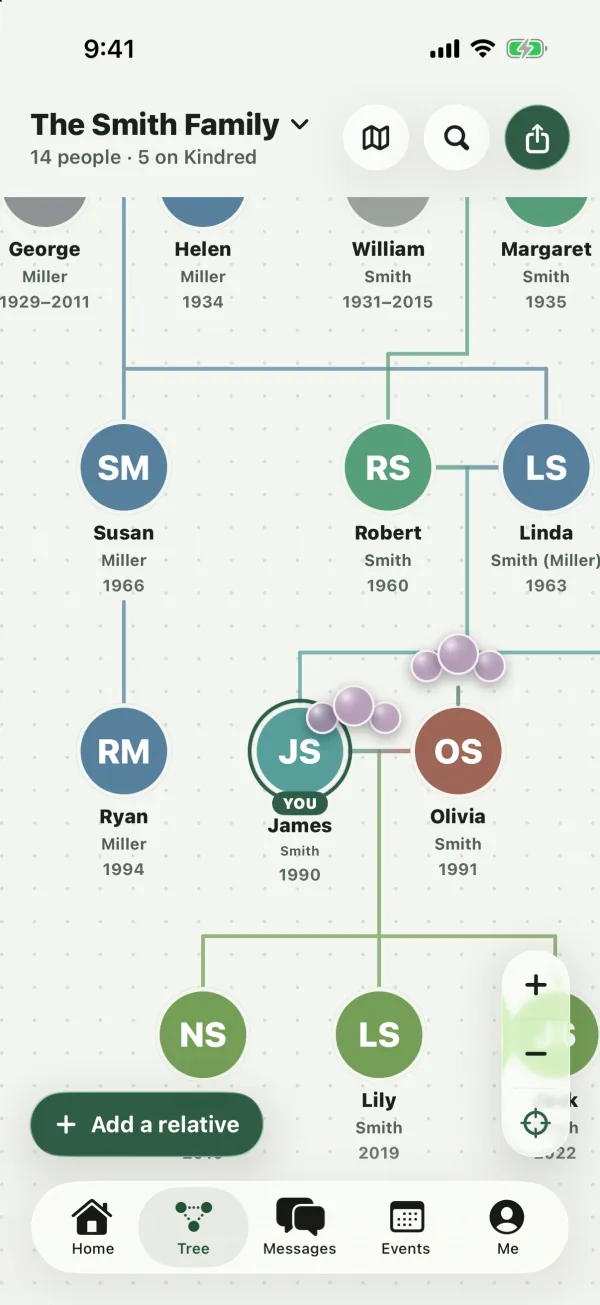
Each person on the tree is a small card with:
- A round picture. Their photo if someone added one, or the profile picture of the family member linked to them. Without a picture you see their initials on a colored circle.
- A YOU badge under your own picture, with a green ring around it.
- Their first name.
- Their surname line. Their last name, followed by their birth surname in parentheses when it’s different. For example, “Smith (Miller)” for Emma Smith, born Emma Miller. If only a birth surname is known, it shows on its own in parentheses.
- Their years, when a birth or passing date is known:
- “1990” for a living person born in 1990.
- “1931–2015” for someone who was born in 1931 and passed away in 2015.
- “1931–” for someone who has passed away, with no date of passing recorded.
- “–2015” when only the date of passing is known.
People who have passed away appear with a faded, grayed-out picture, so you can tell at a glance who is still with you.
Note: Only the year shows on the tree. The full dates are on the person’s page. See Edit a person’s details.
How the tree is arranged
Kindred lays the tree out for you. You don’t need to drag anyone into place.
- Each generation is a row. The oldest generation is at the top, and each row below is the next generation down.
- Partners sit side by side, joined by a short line.
- Children hang below their parents. A line drops from the couple (or from a single parent) to a bar, and from the bar down to each child.
- Siblings are ordered oldest first, from left to right, when their birth dates are known.
- Half-siblings get their own lines. Children who share only one parent are drawn from that parent separately, so you can see which parents each child has.
- Someone who married into the family is placed next to their partner, in the same row.
Family colors
Colors follow the family, not the individual name:
- Every founding couple (people with no parents in the tree) gets its own color.
- Each child takes a blend of their parents’ colors, so brothers and sisters match, and colors shift gradually as families marry into each other.
- The line between two partners fades from one partner’s color to the other’s. The line down to children takes the children’s color.
People without a photo show their initials on their family color.
Move around the tree
On iPhone, iPad and Android
- Move: drag with one finger.
- Zoom: pinch with two fingers. The tree zooms around your fingers.
- Zoom buttons: use the Zoom in (+) and Zoom out (−) buttons at the bottom right of the tree.
- Center on me: tap the target button under the zoom buttons to bring yourself back to the middle of the screen.
You can zoom out to about a third of full size to see a large family at once, and zoom in to two and a half times full size. Lines stay visible however far you zoom out.
On the web
- Move: drag the tree with your mouse, or scroll with your mouse wheel or trackpad.
- Zoom: hold Ctrl (or ⌘ on a Mac) and scroll, or pinch on a trackpad or touch screen. The tree zooms around your pointer.
- Zoom buttons: use the Zoom in, Zoom out and Center on me buttons in the corner of the tree.
- Keyboard: when the tree has focus, the arrow keys move it, and the + and − keys zoom. Press Tab to go from person to person, generation by generation, left to right. The tree moves to keep the focused person in view.
On the web, you can zoom out to about a third of full size and zoom in to twice full size.
Open a person
Tap or click anyone on the tree to see their details: dates, places, story, family, documents and the buttons to contact them. What happens next depends on your screen:
- iPhone (upright) and Android: their page opens full screen. Use the back button to return to the tree.
- iPad, and iPhone on its side: their details open in a panel beside the tree, so you can keep exploring. On a wide iPad screen, the panel shows you when you first open the tree. On a narrower iPad window, the panel floats over the tree. Tap the close button (X) at the top of the panel to hide it.
- Web: their details open in a panel on the right. On a phone-sized screen, the panel fills the screen. Click the close button (X) or press Escape to close it.
While a person is selected in a panel, the tree highlights their closest family: their parents, partners and children stay in full color with the lines between them, and everyone else fades into the background until you close the panel.
For everything on a person’s page, see Edit a person’s details.
Tip: On iPhone and Android, you can press and hold a person on the tree to add a relative of theirs straight away. See Add relatives to your tree.
Find someone
In a large family, search is the fastest way to reach a person.
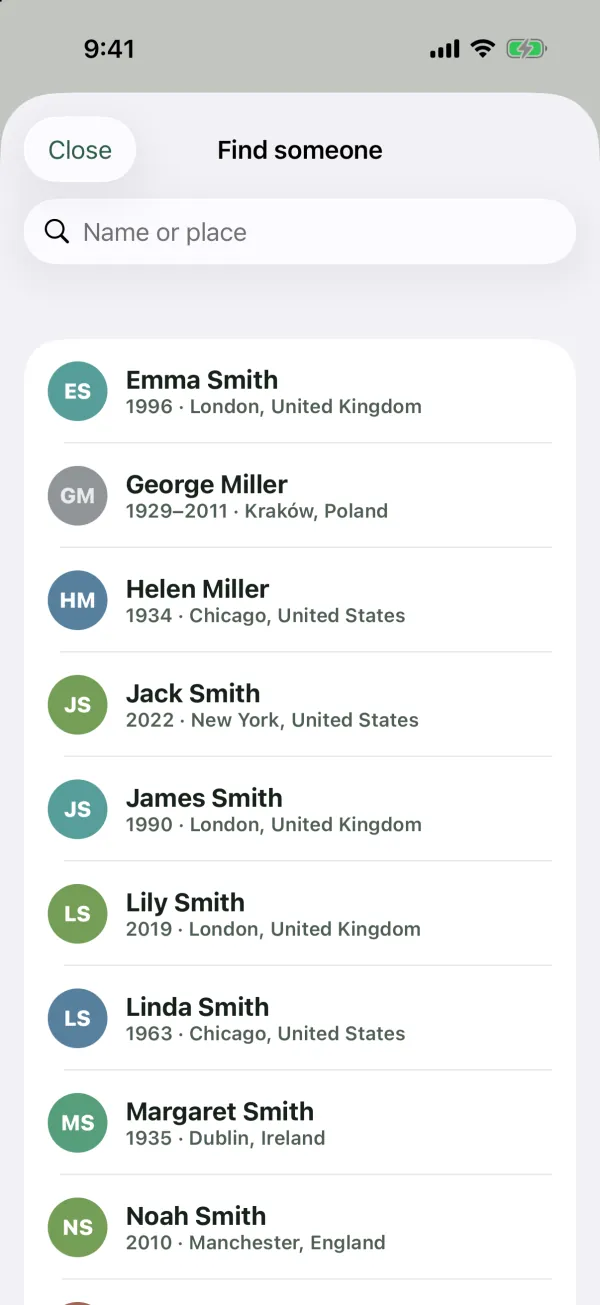
- On iPhone, iPad and Android: tap the magnifying glass at the top of the tree. In Find someone, type in the Name or place box. With the box empty, you see everyone in the tree in alphabetical order. Tap a name to open that person.
- On the web: type in the Find someone… box at the top of the tree page. Up to eight matches appear as you type. Use the arrow keys and Enter, or click a name. The tree selects that person and moves to them.
Search looks at:
- full names (first and last name),
- birth surnames, so you can find Emma Smith by typing “Miller”,
- places of birth, so typing “Boston” lists everyone born there.
Each result shows the person’s years and place of birth to help you pick the right one.
The top of the tree
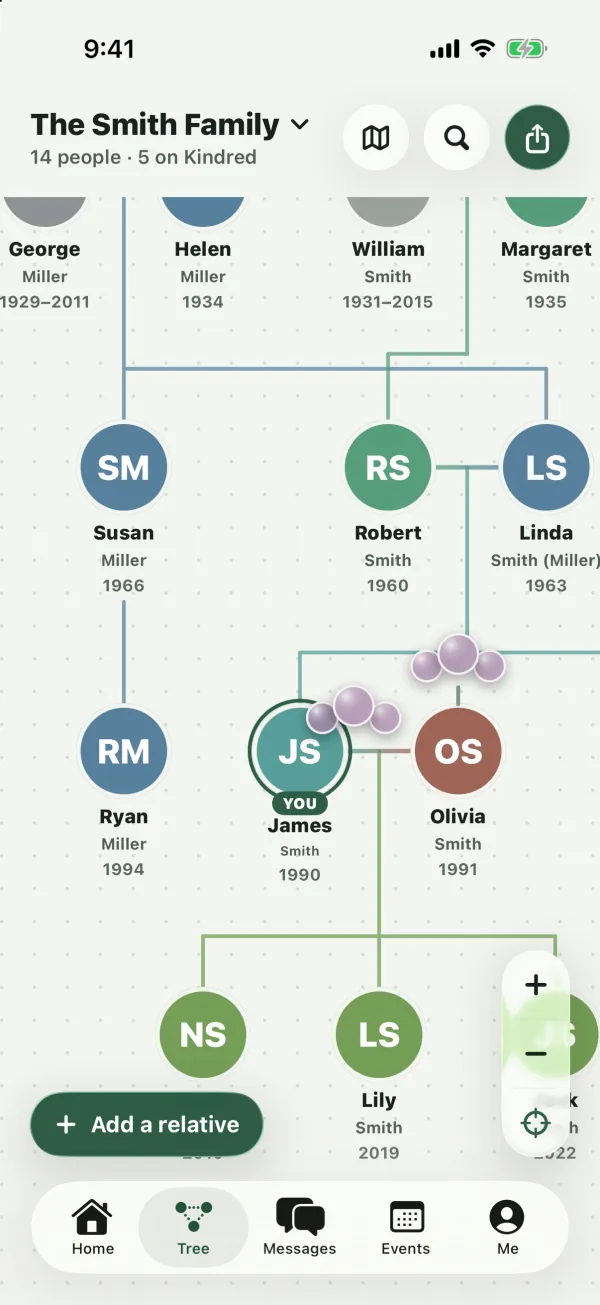
On iPhone and Android, the top of the Tree tab shows:
- The family’s name, with a small down arrow. Tap it to open the tree menu (see below).
- Counts under the name, such as “24 people · 6 on Kindred”: how many people are in the tree, and how many family members have joined Kindred.
- A map button that opens Where we come from, the map of birthplaces. See Explore where your family comes from.
- A magnifying glass for Find someone.
- A share button with Invite family (for admins and collaborators), Share as image and Share as PDF. See Share or print your tree and Invite your family.
At the bottom left you’ll find the Add a relative button (for admins and collaborators), and at the bottom right the zoom buttons.
On the web, the top of the tree page has the Find someone… box, a Share menu (Download as image, Print or save as PDF, Invite family) and the Add a relative button. On a phone-sized screen, it also shows the family name (to switch trees) and a map button.
The tree menu
Tap the family name at the top of the Tree tab (on iPhone and Android) to:
- Switch to another family. All your trees are listed, with a check mark next to the one you’re looking at.
- All families, to see all your trees together. This appears when you’re in more than one tree.
- Edit history, the list of changes made to this tree. See Change history and undo.
- New family tree, to start another tree.
- Rename family (owners and admins only).
- Background (owners and admins only). See below.
On iPad, the family name and its menu are at the top of the sidebar. On the web, they’re at the top of the sidebar (or at the top of the tree page on a phone-sized screen), and the web menu also has Join with an invite code.
For more on several trees, see Keep several family trees.
The same person in your other trees
If someone in this tree also appears in another of your trees, small glass bubbles sit above their picture, tinted with the other tree’s color. When the person is in several of your other trees, a number shows how many.
Tap the bubbles to open the other tree, centered on that same person. If they’re in more than one other tree, pick which one from the list. See Keep several family trees to learn how linked people stay in sync.
Choose the tree’s background
Owners and admins can change the backdrop behind the tree. Everyone in the tree sees the same background.
- On iPhone and Android: tap the family name at the top of the Tree tab, then Background.
- On the web: open the Share menu at the top of the tree page and pick one of the Background options.
The choices are:
- Dots, a light dot grid (the default).
- Plain, a clean background with no pattern.
- Choose a photo…, a photo of your choice, washed out so names stay readable.
- Remove photo, which appears once a photo has been set. If the photo was the background, the tree goes back to dots.
Layouts on different screens
- iPhone, upright: the tree fills the screen, with the tabs at the bottom. Tapping a person opens their page.
- iPhone, on its side: the tree shows a details panel on the right when you tap someone.
- iPad: a sidebar on the left (family switcher, Home, Tree, Where we come from, Messages, Events, Edit history, Me), the tree in the middle and the selected person on the right.
- Android, upright: the tree fills the screen with the tabs at the bottom.
- Android, on its side: the tabs move to a rail on the side, so the tree has more room.
- Web on a computer: a sidebar with your family and sections on the left, the tree in the middle, and the selected person’s panel on the right.
- Web on a phone: tabs at the bottom, the family name at the top of the tree page, and the person panel full screen.
An empty tree
A new tree you created for someone else starts with no one in it. You’ll see An empty tree with the message “Start with anyone (a grandparent, your friend, or yourself) and grow from there.” Admins and collaborators can tap Add the first person to begin. See Add relatives to your tree.
Common questions
Why is someone in the wrong row?
Rows come from relationships. If a parent was saved as a partner, for example, they’ll appear in the wrong generation. Open the person, find the relative under Family, and use the ⋯ button to change the relationship. See Add relatives to your tree.
Why isn’t someone connected to the rest of the tree?
A person who was added without any relationship sits on their own, beside the rest of the family. Open them and use Add a parent, Add a child, Add a partner or Add a sibling to link them to someone already in the tree.
Can I move people around by hand?
No. Kindred arranges the tree automatically from the relationships, birth dates and names, so it stays tidy as the family grows.
Why doesn’t my tree center on me?
Kindred centers on the person marked as you. If no one is marked, open your own card and choose This is me. See Edit a person’s details.
Why can’t I see the Add a relative button?
Viewers can look at the tree but can’t change it. Ask an admin to make you a collaborator. See Members and roles.
Can other members see the same tree as me?
Yes. Everyone in a family tree sees the same people, relationships and background. Changes show up for others the next time their tree refreshes.