Invite your family
On this page
Your family tree is private: people can only see it after they accept an invitation. This article explains how to send an invitation, what your relative receives, how they join, and how to share again or cancel an invitation that hasn’t been used yet.
Who can invite
- Collaborators, admins and the owner of a tree can invite people. Collaborators can invite someone as a collaborator or a viewer. Only admins and the owner can invite another admin.
- Viewers can’t send invitations. The invite buttons don’t appear for them. If you’re a viewer and want to bring someone in, ask an admin of the tree.
- A tree that belongs to a child (a child account under 13 created it): only the child and their parents can invite people to it. See Kids and parents.
To learn what each role can do, see Members and roles.
Open the invite form
You can start an invitation from three places. All of them open the same Invite family form for the tree you have open.
From the tree
- Open the Tree tab.
- Tap the share button at the top right (Share the tree).
- Choose Invite family.
On the web, the menu is the Share button at the top of the Tree page.
From a person’s page
If a living relative is already in the tree but isn’t on Kindred yet, open their page and tap Invite James to Kindred (with their first name). The form opens with their name, email and phone already filled in from their card, so you only need to check them. When they join, their account is connected to that card in the tree, and they’re asked to check the details others entered about them.
This button doesn’t appear for someone who has died, or for someone whose card is already connected to a family member’s account.
From the members list
- Open the Me tab and, under My families, tap Members.
- On iPhone, iPad and Android, tap the invite icon at the top of the screen. On the web, the members list is part of the Me page: click Invite family below it.
On the web on a computer, open the Me page by clicking your name and picture at the bottom of the sidebar.
Fill in the invitation
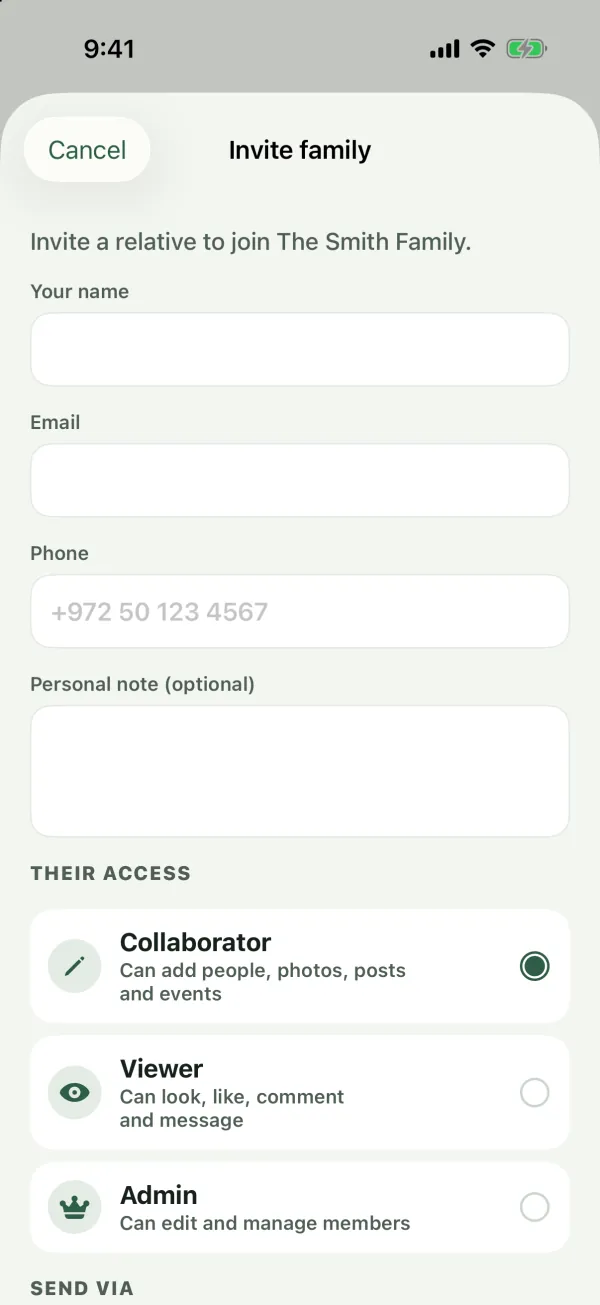
The form starts with a reminder of which tree you’re inviting to: “Invite a relative to join Smith.”
- Name, email and phone. The first field (labeled Your name) is for your relative’s name. Then add their Email and Phone if you want Kindred to send the invitation for you. None of these fields is required, but the name helps you recognize the invitation later.
- Personal note (optional). A few words from you, such as “Grandpa, this is the tree I told you about!” The note is included in the email and in the WhatsApp or text message that Kindred sends. It isn’t added to the message when you share the invitation yourself in the next step.
- Their access. Choose the role your relative will have when they join:
- Collaborator: Can add people, photos, posts and events. This is selected by default.
- Viewer: Can look, like, comment and message.
- Admin: Can edit and manage members. You see this option only if you’re an admin or the owner.
- Send via. Choose how Kindred should send the invitation: Email, WhatsApp and Text message. You can choose more than one, or none at all. Email is selected to start with. When you invite someone from their page and their card has a phone number, WhatsApp is selected too.
- Tap Send invitation.
A few rules about sending:
- Kindred sends by email only when the email address is filled in. WhatsApp and text messages need a phone number. If you choose a channel without the detail it needs, that channel is skipped and the invitation is still created.
- If the email address isn’t valid, you see an error and can fix it.
- Kindred sends the invitation in your app language.
- Sending is done on a best-effort basis. That’s why the next step also lets you share the invitation yourself, which is often the nicest way.
You can change your mind about the role later: an admin can change any member’s role after they join.
The “Invitation ready” step
After you tap Send invitation, you see Invitation ready with the message “We sent it where we could. Share it yourself too. It’s often the nicest way.” From here you can:
- Invite code: the invitation’s code, 10 letters and numbers (for example
K7MPQ2RXWA). Your relative can type it into the app instead of opening a link. On the web, Copy code copies it. - Send from my WhatsApp: opens a WhatsApp chat with the phone number you entered, with the invitation text ready to send from your own WhatsApp. It appears only when you entered a phone number.
- Share another way: opens your device’s share options (Messages, email, other apps). On the web, this button appears only in browsers that support sharing.
- Copy link: copies the invitation link to paste anywhere.
Tap Done when you’re finished. The invitation stays in Pending invitations until your relative accepts it.
What your relative receives
The invitation says who invited them and to which tree, with a link and the code. For example: “Emma invited you to join the Smith family tree on Kindred. Open https://www.kindredplace.app/invite/K7MPQ2RXWA or enter the code K7MPQ2RXWA in the Kindred app.” The email also has a button to open the invitation, the code, and your personal note.
When your relative opens the link:
- If they have the Kindred app on iPhone, iPad or Android, the link usually opens the app directly.
- Otherwise it opens an invitation page on kindredplace.app that shows the tree’s name and who invited them. They can choose Open in the iPhone app, Continue on the web, or copy the code with Copy code and enter it in the app. The page has a language menu at the top.
If the invitation was revoked or already used, the page says “This invitation is no longer valid.”
How your relative joins
If they’re new to Kindred
When they open the link and create an account, the invite code is filled in on the sign-up form for them. They can also tap “Got an invitation? Enter code” on the welcome screen and paste the code or link. After they confirm their email with the 6-digit code, they join the tree automatically. See Start or join a family tree.
If they already have an account
When a signed-in member opens the link, Kindred shows Join Smith on Kindred with “Invited by Emma”. They tap Join the family to join, or Not now to decide later. The tree opens right away.
They can also join with only the code:
- Open the Me tab.
- Under My families, tap Join with an invite code.
- Paste the code or the whole link, and tap Continue.
Capital and small letters both work for the code.
What happens when they join
- They become a member of the tree with the role you chose.
- If you invited them from their page, their account is connected to that person’s card.
- Everyone else in the tree gets a notification: “Robert joined the family tree.”
- The join is recorded in the tree’s edit history.
- The invitation moves out of Pending invitations.
Pending invitations
Invitations that haven’t been accepted yet appear under Pending invitations on the members list (Me tab, then Members; on the web, the Members section of the Me page). Collaborators, admins and the owner see this list. It shows each invitation’s name (or email, phone, or code), the role, and when it was sent. On Android, the email or phone is shown instead of when it was sent.
Share an invitation again
Tap the share icon on the invitation’s row to send the same invitation again from your phone. On the web, this opens your browser’s share options, or copies the link if your browser can’t share (you see “Copied”).
Revoke an invitation
Tap Revoke on the row. On iPhone, iPad and the web, you confirm first. On Android, the invitation is revoked right away.
- Only the person who sent the invitation, or an admin or the owner, can revoke it.
- After it’s revoked, the link and code stop working. Anyone who opens them sees “This invitation is no longer valid.”
- Revoking is recorded in the tree’s edit history.
- A revoked invitation can’t be restored. If you change your mind, send a new one.
Invitations for children
Children under 13 have extra protection:
- A child can join a tree only if one of their parents is already a member, or if a parent sent the invitation.
- A tree that belongs to a child can be joined only by the child’s parents and people a parent invited.
If someone tries to join outside these rules, they see a message explaining why, such as “Children can only join a family tree that a parent is in.” When a parent approves a child’s account, the parent can also add the child to their trees directly. See Kids and parents.
Common questions
Do invitations expire?
No. An invitation stays valid until someone uses it or it’s revoked.
Can I send one invitation to several people?
No. Each invitation can be used once. After one person joins with it, it shows as no longer valid for anyone else. Send a separate invitation to each relative so each one gets the right role.
My relative didn’t get the email or WhatsApp. What can I do?
Open Members, find the invitation under Pending invitations, and tap the share icon to send it yourself through any app. You can also read them the invite code over the phone.
Can a viewer invite people?
No. Viewers can look, like, comment and send messages, but they can’t invite. An admin can change their role to Collaborator if they should be able to invite.
Why can’t I choose Admin?
Only admins and the owner can invite someone as an admin. As a collaborator, you can invite collaborators and viewers.
What if the person I invite is already in another of my trees?
An invitation is for one tree. They can be a member of several trees, each with its own role. See Multiple family trees.