Edit history and undo
On this page
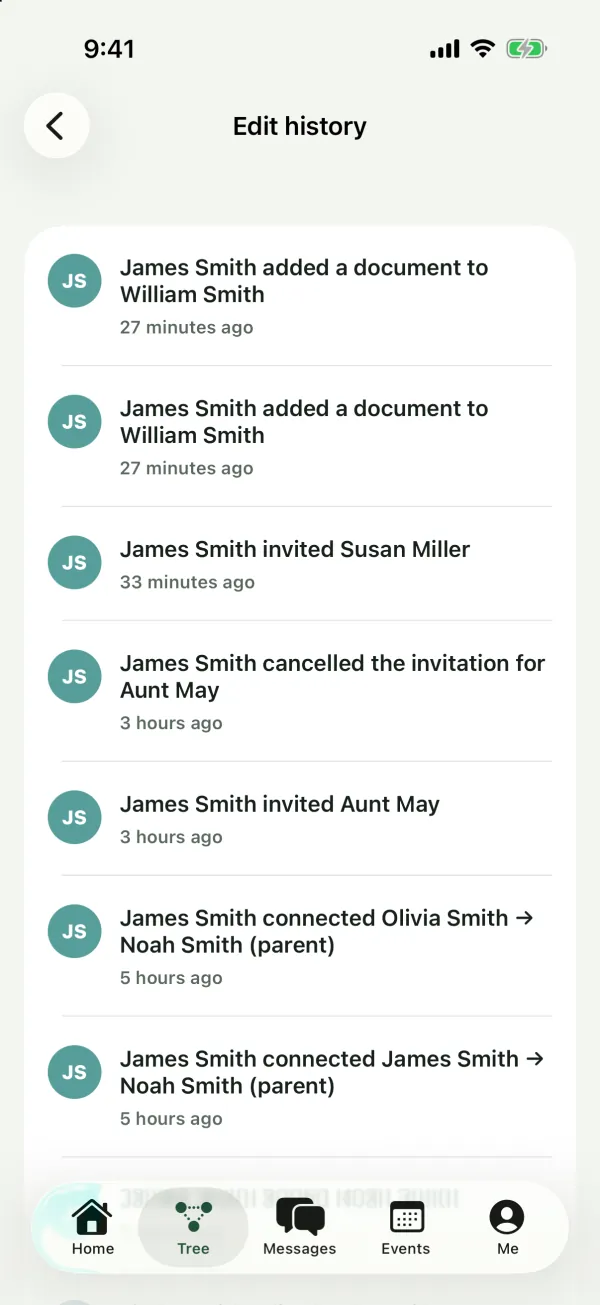
Kindred keeps a record of every change to your family tree: who added, edited or removed someone, who joined, and more. You can read the history for the whole tree or for one person, and undo an edit to someone’s details.
Open the edit history
For the whole tree
- On iPhone and Android: on the Tree tab, tap the family name at the top, then Edit history. It’s also in the Me tab under My families.
- On iPad: tap Edit history in the sidebar.
- On the web: click History in the sidebar, or choose Edit history from the family name menu or the Me page.
For one person
- Open the person’s page (on the web, select them on the tree to open their panel).
- Tap More options (the three dots) and choose Edit history. On the web there’s also a button at the bottom of the panel, for example Emma’s history.
The title shows whose history it is, for example “Emma’s history”. It lists every change that concerns that person: edits to their details, their photo, documents, relationships they’re part of, and so on.
The history always belongs to the tree that’s open. Each tree has its own history.
Who can see it
Everyone in the tree can read the history, including viewers.
What each entry shows
Entries are listed newest first. Each one shows:
- Who made the change, with their photo. If that person has since deleted their account, it says “A former member”.
- What happened, in a short sentence, for example “James edited Grace”.
- When, as a relative time such as “2 hours ago”.
- Before and after, for edits. Each changed field is listed with its label (such as Place of birth or Last name), the old value crossed out, an arrow, and the new value. A dash means the field was empty. Dates are shown in full, and yes/no fields (such as living) read Yes or No.
- An Undo button, on edits you’re allowed to undo (see below).
On iPhone, iPad and Android, older entries load as you scroll, and you can pull down to refresh. On the web, click Load more at the bottom.
What is recorded
Every change to the tree’s contents is recorded. Here’s what you’ll see:
| Entry | When it appears |
|---|---|
| added Grace | Someone added a person |
| edited Grace | Someone changed a person’s details |
| removed Grace | Someone removed a person |
| changed the photo of Grace | A photo was added, changed or removed |
| added a document to Grace | A document was uploaded |
| deleted a document from Grace | A document was deleted |
| connected (two people) | A parent or partner link was added |
| disconnected (two people) | A parent or partner link was removed |
| updated the tree details | The tree was renamed, or its background or cover photo changed |
| joined the family | Someone accepted an invitation or was added |
| invited (name) | Someone sent an invitation |
| cancelled the invitation for (name) | An invitation was revoked |
| changed the role of (name) | A member’s role changed |
| removed (name) from the family | An admin removed a member |
| left the family | A member left the tree |
| made (name) the owner | The owner handed the tree to someone else |
| is now shown as Grace | A member said “This is me” on a person |
| is no longer shown as Grace | A member said “This isn’t me” |
| linked Grace with another family tree | Grace was linked to her copy in another tree |
| stopped syncing Grace with other trees | Someone chose Keep separate in this tree |
| undid an edit to Grace | Someone used Undo |
For connections, the entry names both people and the kind of link, for example “James → Robert (parent)” or “James & Emma (spouse)”.
Changes that come from another tree
If a person is linked across several of your trees, an edit made in one tree is copied to the others, and each tree records it in its own history under the name of the person who made the edit. The same goes for new children and partners that are copied across. See Keep several family trees.
Undo an edit
You can undo an edit to a person’s details: names, birth surname, gender, dates, living or deceased, place of birth, where they grew up, occupation, story, email and phone.
- Find the “edited” entry in the history.
- Tap Undo.
- Confirm: “Undo this change? The previous values will be restored.”
What happens:
- Each field in that edit goes back to its earlier value.
- If a field has been changed again since that edit, it’s left as it is now. Only fields that still hold the value from that edit are restored. If every field has been changed again since, nothing is undone and you’ll see an error.
- The undo is added to the history as “undid an edit to”, with its own before and after.
- If the person is linked to other trees, the undo reaches their copies there too.
Who can undo
The Undo button only appears when all of these are true:
- The entry is an edit to a person’s details.
- The person is still in the tree.
- You’re allowed to edit that person: owners and admins can edit everyone, collaborators can edit people in their own branch, and viewers can’t edit anyone. See Members and roles.
What can’t be undone
Undo isn’t available for anything else, including:
- Adding or removing a person
- Photo changes
- Adding or deleting documents
- Adding or removing a relationship
- Member, role, invitation and tree changes
- An undo itself
To reverse one of these, make the change again by hand. For example, add the relationship back from the person’s page, or edit the person to change a field again.
Note: Removing a person from the tree can’t be undone, and their history entries stay in the log. Think twice before removing someone.
How long history is kept
The history is kept for as long as the tree exists. It never contains passwords or sign-in codes.
Common questions
Does anyone get notified about changes?
No. The history is a record you can look at any time; it doesn’t send notifications.
Why is there no Undo button on an edit?
Either you can’t edit that person (for example, you’re a viewer, or they’re outside your branch as a collaborator), the person has been removed, or the entry isn’t an edit to someone’s details.
I pressed Undo but one field didn’t change back. Why?
Someone changed that field again after the edit you undid. Kindred leaves newer changes alone. Edit the person directly to set the value you want.
Can I undo an undo?
Not with a button. Edit the person again to put the values back.
Who is “A former member”?
Someone who made changes and has since deleted their Kindred account. Their changes stay in the history.
Can I see the history of all my trees together?
No. Each tree has its own history. Switch trees to see another one.