Kids and parents
On this page
Children under 13 can have their own Kindred account, but only after a parent approves it from the parent’s own Kindred account. This guide explains how a child signs up, how a parent approves or declines, what children can and can’t do, and how parents stay in control.
How it works at a glance
- The child starts to create an account and enters a date of birth under 13.
- The child fills in a short form, including a parent’s email address.
- Kindred emails the parent a link. Nothing about the child is stored as an account yet.
- The parent opens the link, signs in to (or creates) their own adult Kindred account, and taps Approve or Decline.
- Once approved, the child can sign in. The approving parent becomes the child’s guardian on Kindred.
For children: sign up with a parent
- On the welcome screen, tap Create my family (or Got an invitation? Enter code if a relative sent you a code).
- Answer When were you born? and tap Continue.
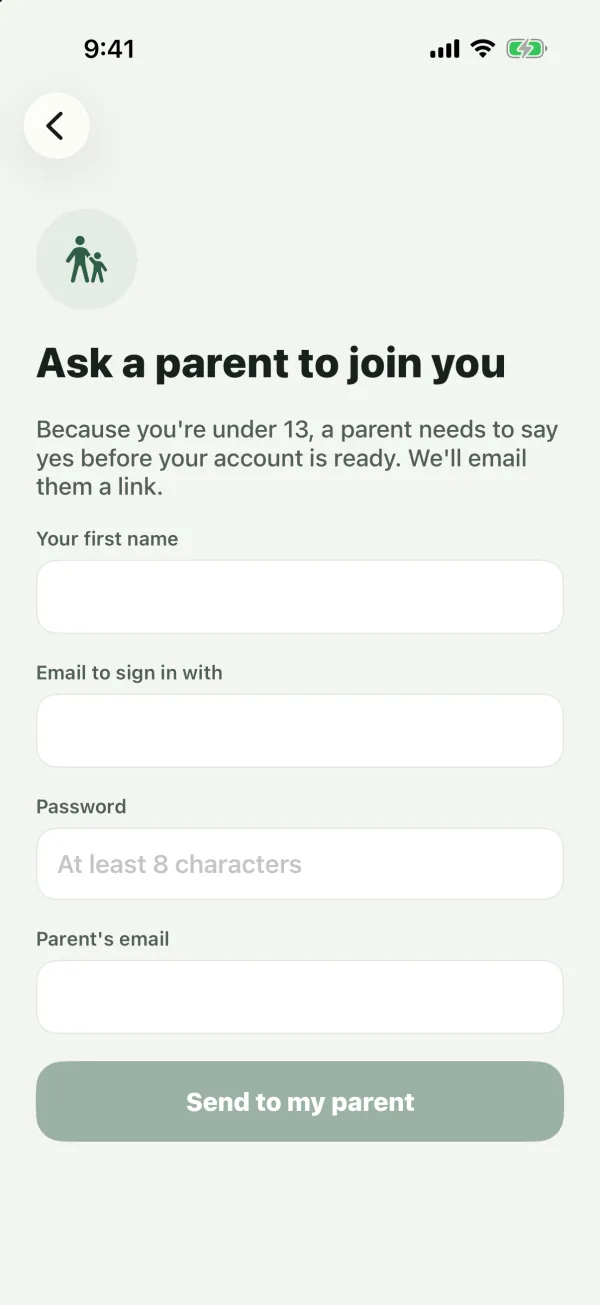
- Because you’re under 13, you see Ask a parent to join you: “Because you’re under 13, a parent needs to say yes before your account is ready. We’ll email them a link.”
- Fill in:
- Your first name.
- Email to sign in with: the email address you’ll use to sign in to Kindred.
- Password: At least 8 characters.
- Parent’s email: where Kindred sends the approval link.
- Invite code: only shown if you’re joining with an invitation.
- Tap Send to my parent.
You’ll see We emailed your parent: “Ask them to open the email from Kindred sent to parent’s email. You can sign in once they approve.”
Note: Use a sign-in email that’s different from your parent’s own Kindred email. A parent can’t approve a child account that uses the same email as the parent’s account.
Things to know:
- Google and Apple sign-in aren’t available for children. If you try them, you’ll see “Google and Apple sign-in are for ages 13 and over.”
- No phone number is asked for.
- Before your parent approves, signing in shows “Your parent hasn’t approved your account yet. Ask them to check their email.”
- If you made a mistake (for example, a typo in your parent’s email), fill in the form again with the same sign-in email. Kindred sends a new link, and the old link stops working.
- When your parent approves, Kindred emails you “Your Kindred account is ready”. Sign in with your sign-in email and password.
For parents: the approval email
Kindred sends you an email with the subject “Name would like to join Kindred”. It tells you your child’s first name and age, what Kindred keeps if you approve, and has a Review the request button.
The link works for 7 days. If you don’t approve within 7 days, or you decline, Kindred deletes the request and keeps nothing about your child.
What the request page shows
When you open the link, you see “Name wants to join Kindred” and this explanation:
“Kindred is a private app for families. With your approval, name can see and add to your family’s tree, posts, events and messages. We keep their first name, date of birth, email and anything they post, only to run the app. No ads, no tracking, and you can remove their account at any time.”
You also see the email your child will sign in with. On the web, the page also shows your child’s age and a link to How Kindred protects children’s privacy. In the Android app, the link is Privacy policy for children.
Approve or decline
You need your own adult Kindred account to approve. Declining doesn’t need an account.
If the link opens in the Kindred app (iPhone, iPad or Android):
- If you’re signed out, you see “Sign in or create your own account to approve.” On iPhone and iPad, tap I already have an account or Create your account. On Android, tap Sign in. After you sign in, the request comes back.
- Under Add name to these families, tick the family trees your child should join. The tree you have open is ticked for you.
- Choose Viewer (the default) or Collaborator.
- Tap Approve. You’ll see “Name’s account is ready.”
If the link opens on the web:
- If you’re signed out, tap Continue. Sign in or create your account, and Kindred brings you back to the request.
- You’ll see Signed in as your name. Tick the families under Add name to these families. Once you tick at least one, choose Viewer or Collaborator under Their access.
- Choose Approve. If you signed in with the wrong account, choose Sign out and try again.
To decline, tap Decline on the request page. You’ll see “Request declined. Nothing about your child was kept.”
If the link is old or already used, you’ll see “This link has expired or was already used.”
Choosing families and a role
- The list shows the family trees where you’re a Collaborator, Admin or Owner. You can’t add your child to a tree where you’re only a Viewer.
- You can tick several families, or none. If you tick none, your child’s account is created without any family tree, and you can invite them later.
- The role applies to every family you tick:
- Viewer: “Can look, like, comment and message.”
- Collaborator: “Can add people, photos, posts and events”. Collaborators edit only their own branch of the family. See Members and roles.
- Each family’s members get a notification that your child joined, and the tree’s history records it.
- If your child signed up with an invite code from you, or for a tree you’re in, they also join that tree when you approve.
Only adults can approve
If the person signed in is a child account, the request shows “Only adults can approve a child’s account.” Sign out and sign in with the parent’s own account.
Me → Children
Parents can manage children’s accounts in the Me tab, in the Children section: “Children under 13 can use Kindred with your approval. You can remove a child’s account at any time.”
The section lists:
- Requests waiting for you, marked Waiting for your approval, with Approve and Decline. Approve asks which families to add your child to and the role, as described above. A request shows here only when the Parent’s email your child typed is the email of your Kindred account.
- Children you’ve approved, with Remove account.
On iPhone, iPad and Android, the Children section appears once you have a child account or a pending request. On the web, it’s always on the Me page. On the web, Remove account is in the More options menu next to your child’s name.
Remove a child’s account
- Open the Me tab and find your child under Children.
- Tap Remove account.
- Confirm with Remove account.
This deletes your child’s Kindred account right away: their sign-in, posts, comments and likes, and their place as a member of each family tree. Their card in the family tree stays for the family, no longer linked to an account. This can’t be undone. To use Kindred again, your child would need to sign up again and get your approval.
What children can and can’t do
Inside their family trees, children’s accounts work like everyone else’s, with the role their parent chose:
- They can see the family tree, the feed, events and messages, and like, comment and send messages.
- As a Collaborator, they can also add people, photos, posts and events in their own branch of the tree.
- They can start their own family tree. Only their guardians, and people a guardian invites, can join it.
Children’s accounts have these limits:
- No Google or Apple sign-in. They sign in with their email and password.
- No phone or WhatsApp number. Edit profile shows only name, date of birth and About me.
- Messages reach them in the app, as notifications on iPhone and iPad, and by email. Not by WhatsApp or text message. Their Notifications settings show only Kindred app and Email.
- No marketing. The Kindred news & offers option isn’t shown, and it’s always off.
- Joining trees: a child can join only a family tree that one of their guardians is in, or one a guardian invited them to.
- Not matched across trees by email. Kindred doesn’t use a child’s email to suggest that someone in one tree is the same person in another.
On the child’s Me tab, Kindred shows Your parent: name.
Copies of emails for guardians
Every email Kindred sends to a child’s account is also sent to each guardian, in the guardian’s own language. The subject starts with “Copy for name’s parent:”. This includes family messages sent by email, password reset codes, and the “Your Kindred account is ready” email.
Common questions
My child didn’t get past “We emailed your parent”. What now?
Check your inbox and spam folder for “Name would like to join Kindred”. If it isn’t there, your child may have typed your email wrong. Ask them to fill in the form again with the correct Parent’s email. If you already have a Kindred account with that email, the request also shows in Me → Children.
Can both parents be guardians?
The parent who approves becomes the guardian. The apps don’t have an option for adding a second guardian, so contact support if you need help with this.
What happens when my child turns 13?
Their account stays as it is, with the same limits.
If I delete my own account, is my child’s account deleted?
No. Deleting your account removes you as your child’s guardian, but your child’s account stays. If you want it deleted, remove it from Me → Children before you delete your own account. See Delete your account.
Can my child delete their own account?
Yes. Any account can be deleted from the Me tab with Delete account. See Delete your account.
Can I add my child to the tree without giving them an account?
Yes. Any collaborator can add a child as a person in the family tree. They don’t need an account to appear in the tree.
Where can I read more about children’s privacy?
See the Children section of the Privacy Policy.