Members and roles
On this page
Everyone in a family tree is a member with a role: owner, admin, collaborator or viewer. Your role decides what you can change in that tree. This article lists exactly what each role can do, and explains how to change roles, hand over ownership, remove a member and leave a tree.
See who’s in your family
- Open the Me tab.
- Under My families, tap Members.
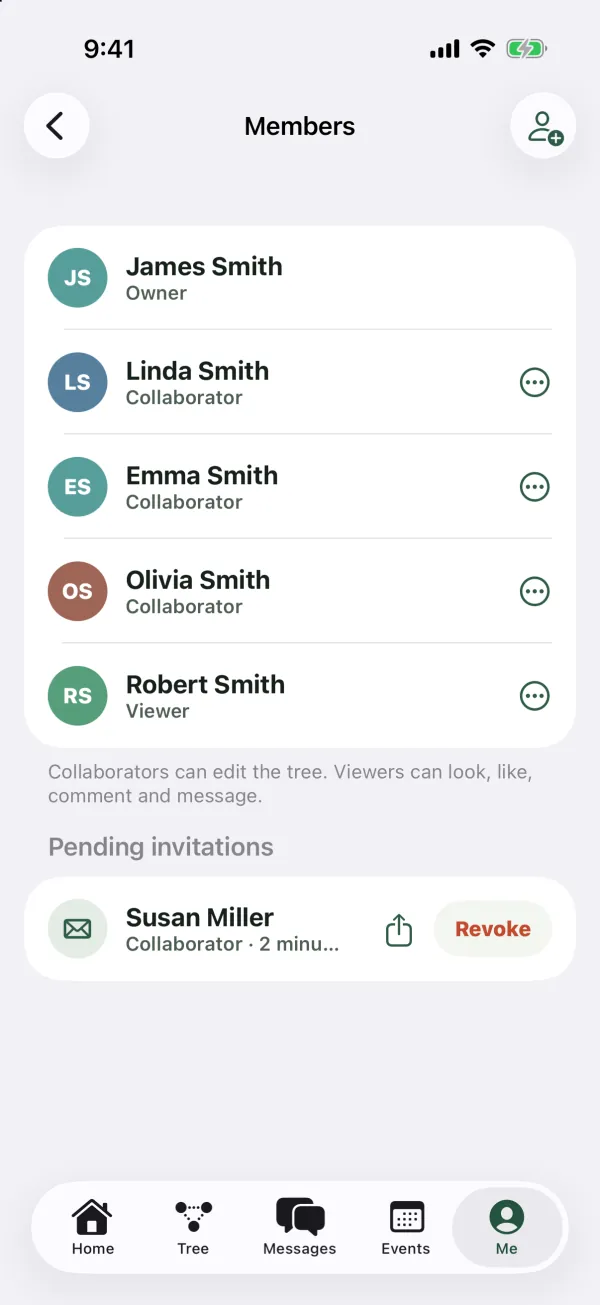
On the web, the members of the tree you have open are listed in the Members section of the Me page. On a computer, open the Me page by clicking your name and picture at the bottom of the sidebar.
Each member shows their name, picture and role. Below the list, a short reminder reads: “Collaborators can edit the tree. Viewers can look, like, comment and message.”
Roles belong to one tree. If you’re in several trees, you can be an admin in one and a viewer in another. Under My families on the web, each tree shows your role in it.
The four roles
Owner
The person who created the tree (“Created this family tree”). A tree has exactly one owner. The owner can do everything an admin can, and also:
- Hand the tree over to another member with Make owner.
- Ask us to delete the whole tree, through the support page.
The owner can’t leave the tree and can’t be removed, and nobody can change the owner’s role. To step away, the owner first makes someone else the owner. If nobody needs the tree anymore, the owner can contact us through the support page to remove it.
Admin
“Can edit and manage members.” An admin can do everything a collaborator can, and also:
- Edit every person in the tree, not only their own branch.
- Change other members’ roles (except the owner’s).
- Remove members from the tree (except the owner).
- Invite people as admins.
- Revoke any pending invitation, not only their own.
- Delete anyone’s post in the family feed.
- Delete events that other people added.
- Remove people from the tree that someone else added.
- Rename the tree and change its background.
Collaborator
“Can add people, photos, posts and events.” This is the default role for new members. A collaborator can:
- Add relatives and edit people in their own branch of the family (see below).
- Write posts in the family feed, with text and photos.
- Create events.
- Invite people as collaborators or viewers, and see and revoke the invitations they sent.
- Undo edits to people they’re allowed to edit, from the edit history.
- Remove a person they added themselves.
- Delete their own posts and the events they added.
Viewer
“Can look, like, comment and message.” A viewer can:
- See the whole tree, every person’s page, the feed and events.
- Like posts and write comments.
- Send messages to the family.
A viewer can’t add or edit people, write posts, create events or invite anyone. The buttons for these actions don’t appear for viewers. If someone tries, Kindred says: “Viewers can’t make changes to this family tree. Ask an admin to make you a collaborator.”
What every member can do
Whatever their role, every member can see the members list, report or block someone, get notifications, and leave the tree (except the owner).
Collaborators edit only their own branch
To keep everyone’s work safe, a collaborator can edit only the people closest to them. A collaborator can edit:
- Their own card in the tree (the person their account is connected to).
- Their partners.
- All their ancestors (parents, grandparents and further back) and all their descendants (children, grandchildren and further down).
- The partners of those ancestors and descendants.
- Their siblings (anyone who shares at least one parent with them).
- Anyone they added to the tree themselves.
Here’s an example. William is a collaborator connected to his own card. He can edit his parents Robert and Linda, his grandparents, his wife Grace, their children, and his sister Emma. He can’t edit Emma’s husband or Emma’s children, unless he added them himself.
A few more things to know:
- When a collaborator adds a relative, they add it from someone in their branch. In a tree that already has people, a collaborator can’t add a person who isn’t connected to anyone.
- If a collaborator’s account isn’t connected to a card in the tree, they can edit only the people they added themselves.
- If a collaborator tries to change someone outside their branch, they see: “You can only edit people in your own branch of the family.”
- Admins and the owner can edit everyone. Viewers can’t edit anyone.
Change someone’s role
Admins and the owner can change the role of any member except the owner and themselves.
- Open Members.
- Tap the more button (More options, the three dots) next to the member.
- Under Role, choose Admin, Collaborator or Viewer.
On the web, the menu lists the choices as Role: Admin, Role: Collaborator and Role: Viewer, with a check next to the current one.
The change takes effect right away. The member doesn’t get a notification about it. The change is recorded in the tree’s edit history.
Tip: An admin can also change another admin’s role. If you want to be the only person who can manage members, keep the number of admins small.
Make someone else the owner
Only the owner can do this.
- Open Members.
- Tap the more button next to the member.
- Tap Make owner.
- Confirm: “Make Robert the owner? You’ll stay on as an admin.”
The other member becomes the owner, and you become an admin. The new owner gets a notification. The handover is recorded in the edit history. Only the new owner can give ownership back.
Remove someone from the family
Admins and the owner can remove any member except the owner.
- Open Members.
- Tap the more button next to the member.
- Tap Remove from family.
On the web, you confirm first. On iPhone, iPad and Android, the member is removed right away, so check the name before you tap.
When you remove someone:
- They lose access to the tree right away. The tree disappears from their list.
- Their card in the tree stays, but it’s no longer connected to their account.
- Their posts and comments stay in the feed. An admin can delete posts one by one.
- They aren’t sent a notification.
- The removal is recorded in the edit history.
- To come back, they need a new invitation.
Leave a family tree
- Open Members for the tree you want to leave.
- Tap Leave this family at the bottom.
- Confirm: “Leave this family tree? You’ll need a new invitation to come back.”
After you leave, the tree is removed from your list under My families. Your card in the tree stays, but it’s no longer connected to your account. Your posts stay in that tree’s feed. Leaving is recorded in the edit history.
The owner doesn’t see Leave this family. If you’re the owner, first make someone else the owner, then leave. If nobody needs the tree anymore, contact us through the support page to remove it (see Multiple family trees).
Children’s accounts
Children under 13 use Kindred with a parent’s approval:
- When a parent approves a child’s account, the parent can add the child to their trees as a Viewer (the default) or a Collaborator. After that, an admin can change the child’s role like anyone else’s.
- A child can join only trees where one of their parents is a member, or through a parent’s invitation.
- If a child creates their own tree, only the child and their parents can invite people to it.
See Kids and parents for the full details.
Common questions
How do I know my role?
Your role appears next to your name in Members. On the web, it also appears under your name at the bottom of the sidebar, and under each tree in My families on the Me page.
Why can’t I edit a relative?
You’re probably a collaborator and the person is outside your branch, or you’re a viewer. Ask an admin to make the change, or to give you a different role.
Can there be more than one admin?
Yes. A tree can have any number of admins, but only one owner.
Can I remove the owner?
No. The owner can’t be removed and their role can’t be changed. Only the owner can hand the tree to someone else.
Does a removed member get told?
No. Kindred doesn’t send a notification when someone is removed or when their role changes. They see the change the next time they open the app.
If I leave, can I come back?
Yes, with a new invitation from someone in the tree. Your old card in the tree is still there, so the person inviting you can invite you from your card to connect you to it again.
What happens to a tree when the owner deletes their account?
The tree passes to the longest-standing admin, or to another member if there’s no admin. If nobody else is in the tree, it’s deleted. See Delete your account.