Get started with Kindred
On this page
Kindred is a private app where your family builds one family tree together, shares photos and news, sends messages, and keeps track of birthdays and other family dates. This guide walks you through creating your account, signing in, choosing your language, and finding your way around the app.
What Kindred is
- A shared family tree. Everyone you invite can see the tree, and collaborators can add relatives, photos, dates and stories.
- A private family space. Only people invited to a tree can see it. There are no public profiles and no search for strangers.
- One place to reach everyone. Post to the family feed, or send one message that reaches each relative in the app, on WhatsApp, by email or by text message, depending on what they’ve allowed.
- Family dates. Birthdays and memorials appear automatically from the dates in the tree, and you can add anniversaries and gatherings.
Kindred works on iPhone and iPad, on Android, and on the web at kindredplace.app/app. It’s the same account and the same family tree everywhere.
Create your account
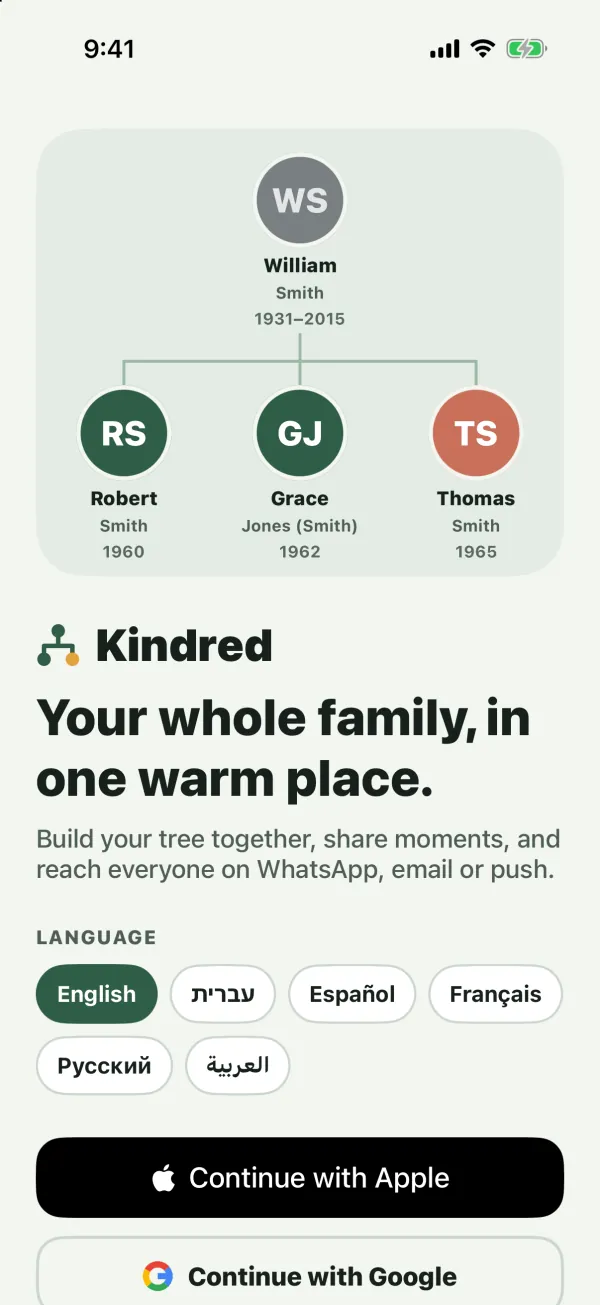
When you first open Kindred, you see the welcome screen with the Language choices and these buttons:
- Create my family: create a new account.
- I already have an account: sign in.
- Got an invitation? Enter code: create a new account and join a family tree with an invite code. See Start or join a family tree.
On iPhone, iPad and Android, the welcome screen also shows Continue with Google (and on iPhone and iPad, Continue with Apple) above these buttons.
Step 1: Your date of birth
Every new account starts with the question When were you born? Pick your date of birth and tap Continue. Nothing is filled in for you, and the date can’t be in the future.
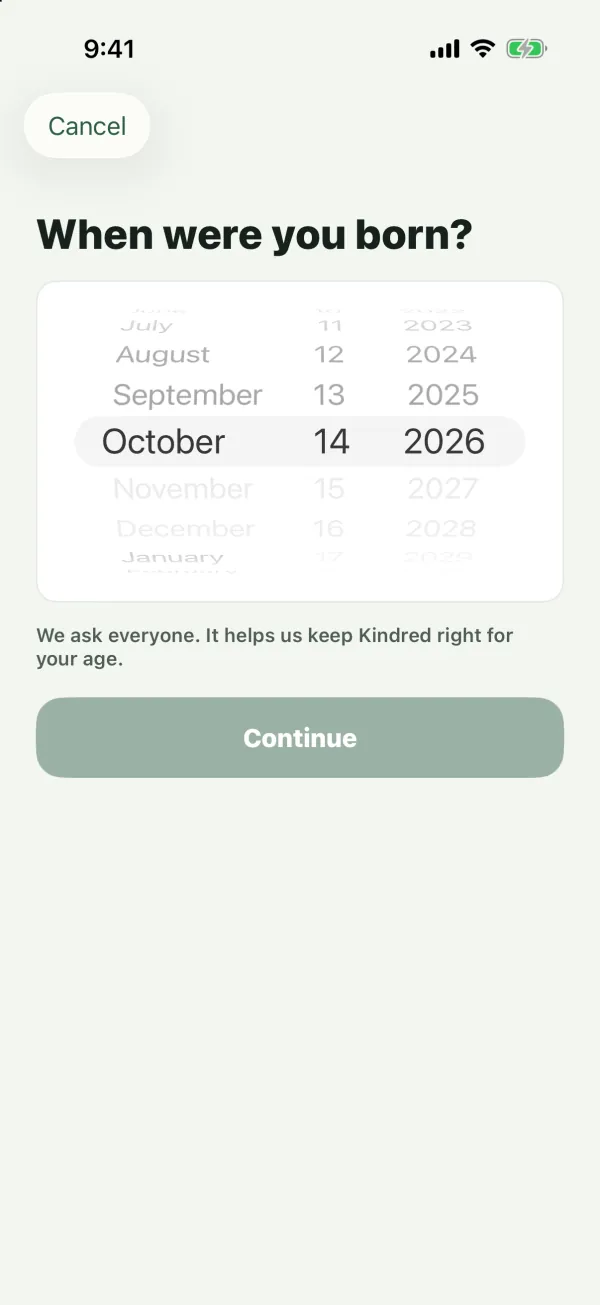
Kindred asks everyone this question. If you’re under 13, a parent needs to approve your account first, and you’ll see Ask a parent to join you instead of the normal form. Read Kids and parents for how that works.
Step 2: Your details
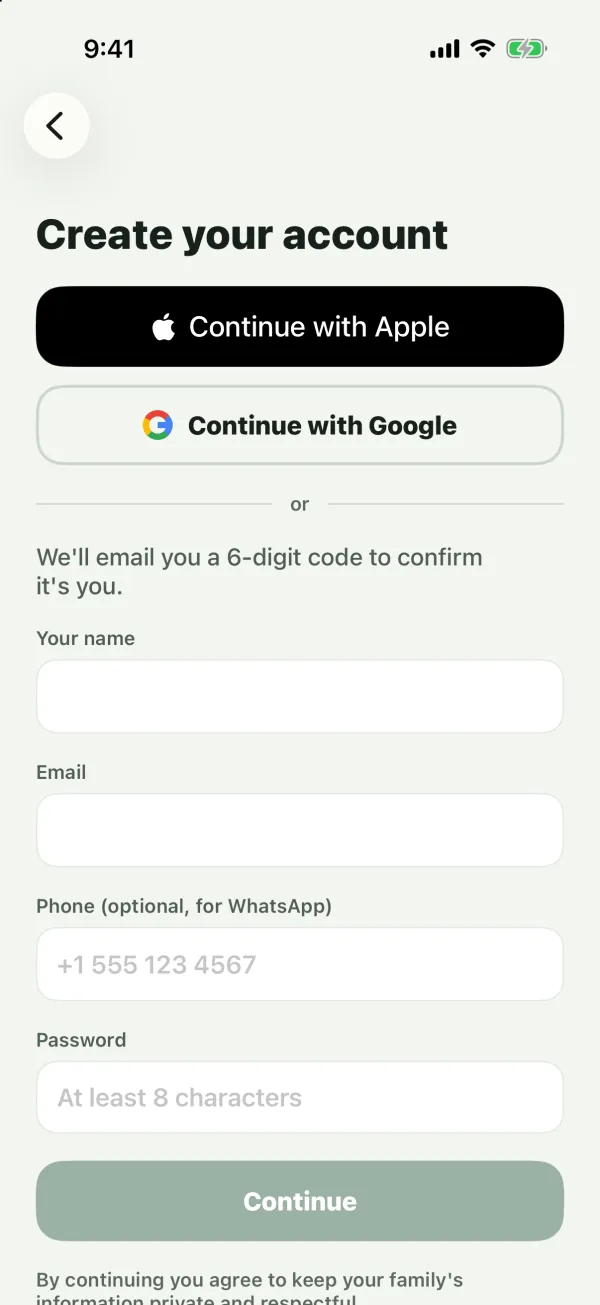
If you’re 13 or older, you see Create your account. You can either continue with Google or Apple (see below), or fill in the form:
- Your name (required).
- Email (required). This is the address you’ll sign in with.
- Phone (optional, for WhatsApp). Add it if you’d like to get family messages on WhatsApp or by text message. You can add or change it later in your profile.
- Password (required): At least 8 characters.
- Invite code: this field appears only if you chose Got an invitation? Enter code, or opened an invitation link.
Tap Continue. Under the button you’ll see: “By continuing you agree to keep your family’s information private and respectful.”
Step 3: Confirm your email
Kindred emails you a 6-digit code. On the Check your email screen:
- Enter the 6 digits from the email. On iPhone and Android, your keyboard may offer to fill in the code for you.
- Tap Confirm.
Your account is created and you’re signed in. If you entered an invite code, you join that family tree at the same time.
Note: The code works for 15 minutes. If it has expired or didn’t arrive, tap Send a new code. You’ll see “A new code is on its way.” Only the newest code works, and you can request a new one every 30 seconds. After 5 wrong tries, request a new code.
Your date of birth from step 1 is saved to your profile. You can change it later in Edit profile.
Next: start or join a family tree
If you didn’t join a tree with an invite code, you’ll see Welcome to Kindred with two choices: Start a family tree or Join with an invite code. Continue with Start or join a family tree.
Continue with Google or Apple
You can create an account or sign in with your Google account, or with your Apple Account on iPhone and iPad.
| Sign-in option | Where it’s available |
|---|---|
| Email and password | iPhone, iPad, Android, web |
| Continue with Google | iPhone, iPad, Android, web |
| Continue with Apple | iPhone and iPad |
How it works:
- New account: Kindred asks When were you born? first (if you haven’t answered it yet), then opens Google’s or Apple’s sign-in. Your name comes from your Google or Apple account, and with Google, your profile photo too.
- Existing account: if your Google or Apple email matches a Kindred account that already exists, you’re signed in to that account, and Google or Apple sign-in is added to it.
- Under 13: Google and Apple sign-in aren’t available. You’ll see “Google and Apple sign-in are for ages 13 and over.” Children create an account with an email address and a parent’s approval.
On the web, Continue with Google appears on the Create your account form (after the date of birth question) and on the sign-in screen, not on the welcome screen.
Tip: If you sign in with Google or Apple, you don’t need a Kindred password. If you later want to sign in with a password too (for example, on Android or the web after creating your account with Apple), use Forgot password? with the email shown under your name in the Me tab to set one.
Sign in
- On the welcome screen, tap I already have an account.
- On Welcome back, enter your Email and Password, then tap Sign in. Or use Continue with Google (or Continue with Apple on iPhone and iPad).
When you sign in, Kindred switches to the language saved on your account, so the app speaks the same language on all your devices.
On iPhone and iPad, Kindred asks whether it may send you notifications right after you sign in. See Notifications.
Forgot your password
- On Welcome back, type your Email first.
- Tap Forgot password? If the email field is empty, you’ll see “Enter your email first.”
- Kindred emails a 6-digit code to that address, if it has an account.
- On Check your email, enter the code, type a New password (at least 8 characters), and tap Save new password.
You’re signed in with your new password. The reset code also works for 15 minutes. Tap Send a new code if you need another one.
Note: For your privacy, this screen doesn’t say whether an email address has an account. If no code arrives, check that you typed the address you signed up with.
Choose the app language
Kindred speaks English, עברית (Hebrew), Español, Français, Русский and العربية (Arabic). Hebrew and Arabic read right to left.
- Before you sign in: tap a language under Language on the welcome screen. On the web, you can also pick one on the Welcome to Kindred screen.
- Any time after: open the Me tab and go to Language. On iPhone, iPad and Android it’s under Settings; on the web it’s a section on the Me page.
The first time you open Kindred, it uses your phone’s or browser’s language if it’s one of the six, and English otherwise. After that, Kindred keeps its own setting, separate from your phone’s language.
Your choice is saved to your account. Emails, WhatsApp messages, text messages and notifications that Kindred sends you arrive in your language too, even when the person who sent them uses a different one.
Find your way around
Once you’re in a family tree, the app has five main places.
| Tab | What you’ll find |
|---|---|
| Home | The family feed: posts, photos, likes and comments |
| Tree | Your family tree: people, relationships, search |
| Messages | Messages to the whole family or to chosen people |
| Events | Upcoming birthdays, anniversaries, memorials, gatherings |
| Me | Your profile, families, settings and account |
Where to find them on each platform:
- On iPhone and Android: the five tabs are along the bottom of the screen. The Me tab shows your photo once you’ve added one, with a badge for unread notifications. When an Android phone is turned sideways, the tabs move to a rail on the side.
- On iPad: a sidebar lists Home, Tree, Where we come from, Messages, Events, Edit history and Me, with a menu at the top for switching family trees. On an iPad in a narrow window, you get the tabs at the bottom instead.
- On the web: on a wide screen, the sidebar lists Home, Tree, Origins map, Messages, Events, History and Notifications, with your family tree’s name at the top for switching families. Select your name and photo at the bottom of the sidebar to open Me. In a narrow window or on a phone, the five tabs appear at the bottom.
Common questions
Do I need a phone number?
No. Only your name, email and password are required. A phone number lets relatives reach you on WhatsApp or by text message if you allow those channels.
Why does Kindred ask my date of birth?
Kindred asks everyone, so it can keep Kindred right for each person’s age. Children under 13 need a parent’s approval before their account is created.
Can I use Kindred on more than one device?
Yes. Sign in with the same email (or the same Google or Apple account) on your phone, tablet and computer. Your tree, posts and messages are the same everywhere.
Is Kindred free?
Yes. Kindred is currently free for families.
I signed up but never confirmed my email. What now?
Go back to Create my family and fill in the form again with the same email. Kindred sends a fresh code. If you try to sign in before confirming, Kindred reminds you to verify your email first.