Start or join a family tree
On this page
Once your account is ready, you either start a new family tree or join one a relative already created. This guide covers both, what happens when you join, and the Check your details step you may see the first time you open a family’s tree.
The Welcome to Kindred screen
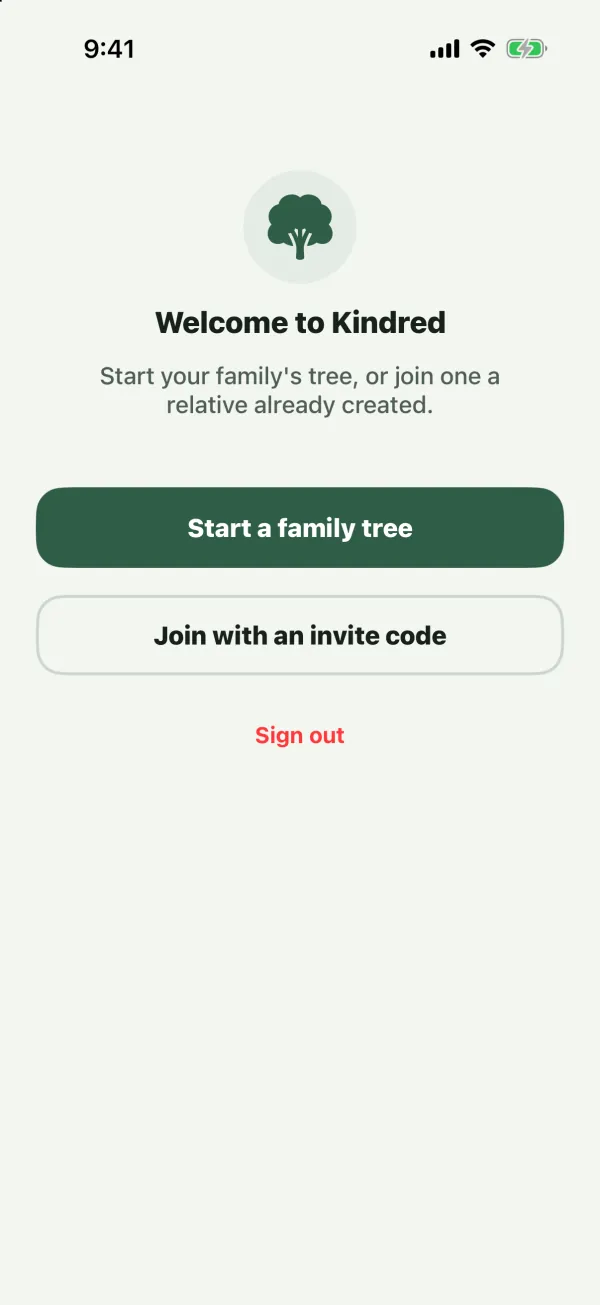
If you’re signed in but don’t belong to any family tree yet, Kindred shows Welcome to Kindred: “Start your family’s tree, or join one a relative already created.” You have two choices:
- Start a family tree: create a new, private tree.
- Join with an invite code: join a tree someone invited you to.
You can also Sign out from this screen. On the web, it also has the Language choices. On iPhone, iPad and Android, pull down to refresh if you expect to see a tree (for example, after a relative added you).
Tip: If you joined with an invite code while creating your account, you skip this screen and go straight into the family’s tree.
Start a family tree
- Tap Start a family tree. (Later, you can start more trees from the Me tab with New family tree.)
- On New family tree, fill in:
- Family name (required), for example “The Smith Family”.
- Description (optional).
- I’m part of this family: on by default.
- Tap Create family tree.
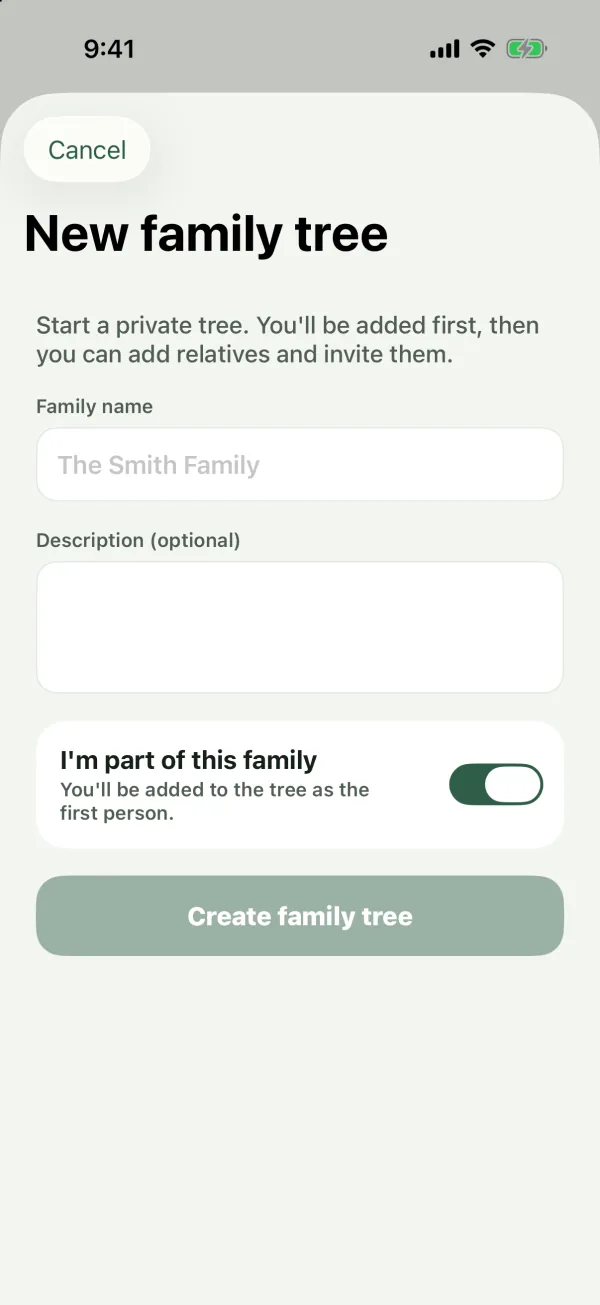
The new tree opens, and you’re its Owner.
I’m part of this family
This switch decides whether you appear in the tree:
- On: “You’ll be added to the tree as the first person.” Kindred creates your card from your profile: your name (split into first and last name), your date of birth if your profile has one, your email and your phone. From there you can add your parents, partner, children and other relatives.
- Off: “Building it for someone else: you’ll manage it without appearing in it.” Use this when you build a tree for a friend or for another side of the family. The tree starts empty, with An empty tree and Add the first person.
What to do next
- Add relatives: see Add relatives.
- Fill in details and photos: see Edit a person.
- Invite your family: see Invite your family.
You can belong to as many family trees as you like, for example your side and your partner’s side. See Several family trees.
Join a family tree
A relative can invite you by link, WhatsApp, email, text message or a code. How you join depends on what you received.
With an invitation link
Invitation links look like https://www.kindredplace.app/invite/ followed by a code.
- If Kindred is installed on your iPhone, iPad or Android phone, tapping the link opens the app:
- Signed out: Kindred opens Create your account with the Invite code already filled in. Answer When were you born?, fill in the form, and confirm your email. You join the tree as soon as your account is created. If you already have an account, sign in instead, and Kindred shows the invitation after you sign in.
- Signed in: Kindred shows the invitation right away (see below).
- If the link opens in your browser, you see the invitation page: Join family name on Kindred and Invited by name, with these options:
- Open in the iPhone app: opens the Kindred app if it’s installed.
- Continue on the web: opens Kindred on the web, where you can create an account or sign in, and then join.
- Invite code with Copy code: copy the code and paste it in the app.
With an invite code
Invite codes are 10 letters and numbers. Capital or small letters both work.
- New to Kindred: on the welcome screen, tap Got an invitation? Enter code, answer When were you born?, and paste the code (or the whole link) into Invite code on the sign-up form.
- Already signed in: tap Join with an invite code on the Welcome to Kindred screen, or in the Me tab under My families. On the web, it’s also in the family tree menu at the top of the sidebar. On Join a family, paste the code or link a relative sent you, and tap Continue.

The invitation screen
Before you join, Kindred shows Join family name on Kindred and Invited by name.
- Tap Join the family to join.
- Tap Not now to close it without joining. You can use the code again later.
If you see “This invitation is no longer valid.”, the invitation was already used or was revoked. Ask your relative for a new one.
What happens when you join
- You become a member of the tree with the role chosen in the invitation: Collaborator (the usual choice), Viewer or Admin. See Members and roles.
- If the invitation was sent from your card in the tree, your account is linked to that card, so the tree shows you as YOU.
- Everyone else in the tree gets a notification that you joined, and the tree’s edit history records it.
- Each invitation works once. After you join, it can’t be used by anyone else.
Note: If you weren’t invited from your own card, you may already be in the tree as someone’s relative. Find yourself and use This is me on your card to link it to your account. See Edit a person.
Check your details
If someone else created your card in the tree, Kindred shows Check your details the first time you open that tree: “Name added you to the tree. Make sure these details are right.”
It lists what the family entered about you: First name, Last name, Birth surname (optional), Date of birth, Place of birth, Grew up in, Occupation, Email and Phone. Anything empty shows Not set.
- Looks right: confirms the details and closes the screen.
- Edit my details: opens your card so you can fix or add details. This button appears only if you’re allowed to edit your own card.
- If you can’t edit your card (for example, as a Viewer), you see “Something wrong? Ask a tree admin to fix it.”
This screen stays until you tap Looks right. It appears once per tree, so you may see it again when you join another family’s tree.
Common questions
Can I start a tree and also join my family’s tree?
Yes. You can belong to any number of trees and switch between them. See Several family trees.
My invitation link says it’s no longer valid. Why?
Each invitation can be used only once, and the person who sent it (or a tree admin) can revoke it. Ask them to send a new invitation. See Invite your family.
I already have an account. Do I need to create a new one to join?
No. Sign in, then use Join with an invite code in the Me tab, or tap the invitation link again.
Who can see a tree I start?
Only the people you invite. See Privacy and safety.
Can I rename the tree later?
Yes, owners and admins can rename a tree. See Several family trees.
I’m under 13. Can I join my family’s tree?
Yes, with a parent’s approval. Your parent can add you to their family trees when they approve your account. See Kids and parents.