Notifications
On this page
Kindred keeps you up to date with what’s happening in your family: new posts, comments, messages, events, birthdays and new members. Everything lands in your notifications inbox, and you choose which channels family messages can use to reach you.
Your notifications inbox
Open it
- On iPhone and iPad: tap the bell at the top of the Home tab, or go to the Me tab and tap Notifications (the first row under your profile).
- On Android: tap the bell at the top of the Home tab, or go to Me and tap Notifications.
- On the web: choose Notifications in the sidebar, select the bell on Home, or open Me and choose Notifications.
The number of unread notifications shows on the bell, on the Notifications row, and as a badge on the Me tab. On iPhone and iPad it also shows as a badge on the Kindred app icon. On the web, it shows next to Notifications in the sidebar.
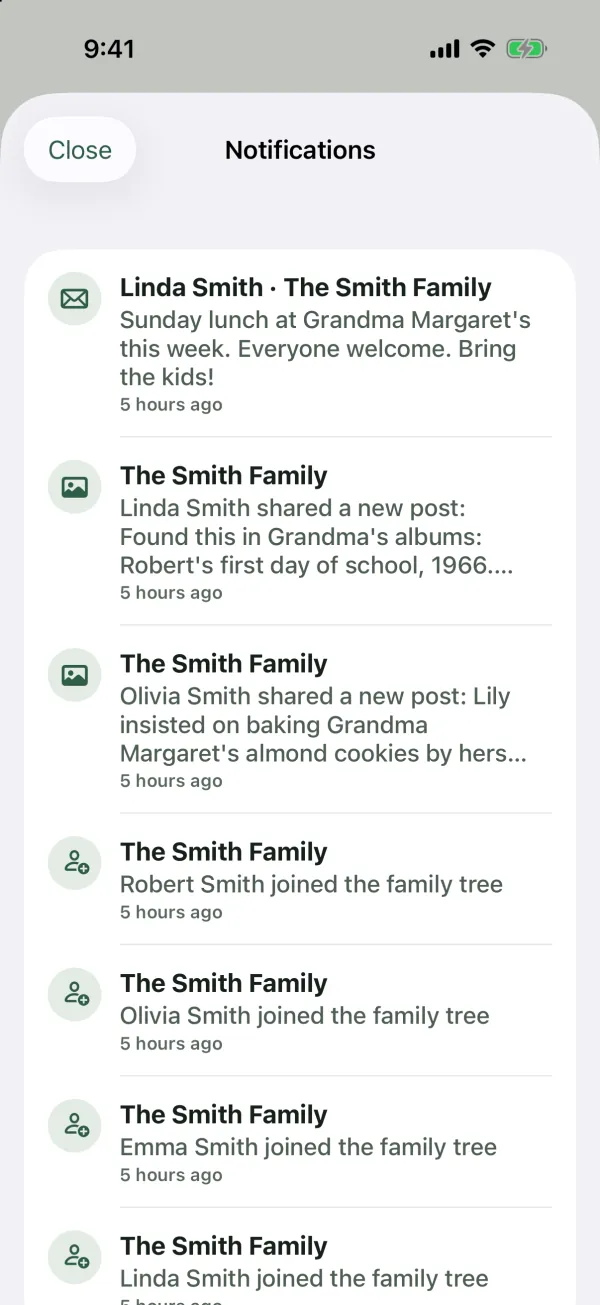
What’s in it
Each notification has an icon for its type, a title (usually the family’s name), a short description and how long ago it happened. Unread ones have a red dot. The inbox keeps your latest 100 notifications, newest first. When there’s nothing, you see You’re all caught up.
You get a notification when:
| What happened | Who gets it |
|---|---|
| A new post is shared | Everyone else in the family |
| Someone comments on your post | You, the post’s author |
| Someone likes your post | You, the post’s author |
| Someone sends a message | The people it was sent to |
| A new event is added | Everyone else in the family |
| It’s someone’s birthday today | Everyone in the family except the birthday person |
| Someone joins the family | Everyone else in the family |
| You’re added to a new family tree, or made its owner | You |
| A Kindred announcement goes out | Only people who turned on Kindred news & offers |
Notifications from your own actions never come back to you. Notifications caused by someone you’ve blocked aren’t sent to you.
Marking notifications as read
- On iPhone, iPad and Android: opening the inbox marks everything as read.
- On the web: select a notification to mark it as read, or select Mark all as read at the top.
Notifications in the inbox are a record: tapping one doesn’t open the post or message. To see the details, go to the matching tab (for example Messages or Events).
Push notifications on your device
iPhone and iPad
After you sign in, your iPhone or iPad asks whether Kindred can send you notifications. Tap Allow to get them.
- Notifications show as banners with a sound, even while Kindred is open.
- Tapping a notification opens Kindred in the right place: messages open the Messages tab, events and birthdays open Events, a new member opens the Tree, and the rest open Home. If the notification is about another of your family trees, Kindred switches to that tree.
- If you chose Don’t Allow earlier, turn notifications on in your device’s Settings app, under Notifications and then Kindred.
When you sign out, that iPhone or iPad stops getting push notifications for your account.
Android
Kindred for Android doesn’t show push notifications yet. Your notifications still collect in the inbox, with the unread count on the bell and the Me tab. Family messages can also reach you by email, WhatsApp or text message, if you allow those channels (see below).
Web
The web app at kindredplace.app doesn’t send browser notifications. While it’s open, the unread count updates about once a minute.
Choose how family messages reach you
These settings decide which channels other members can use when they send you a message.
Find the settings
- On iPhone and iPad: go to the Me tab, then under Settings tap Notifications.
- On Android: go to Me, then under Settings tap Notifications.
- On the web: open Me and scroll to the Notifications section.
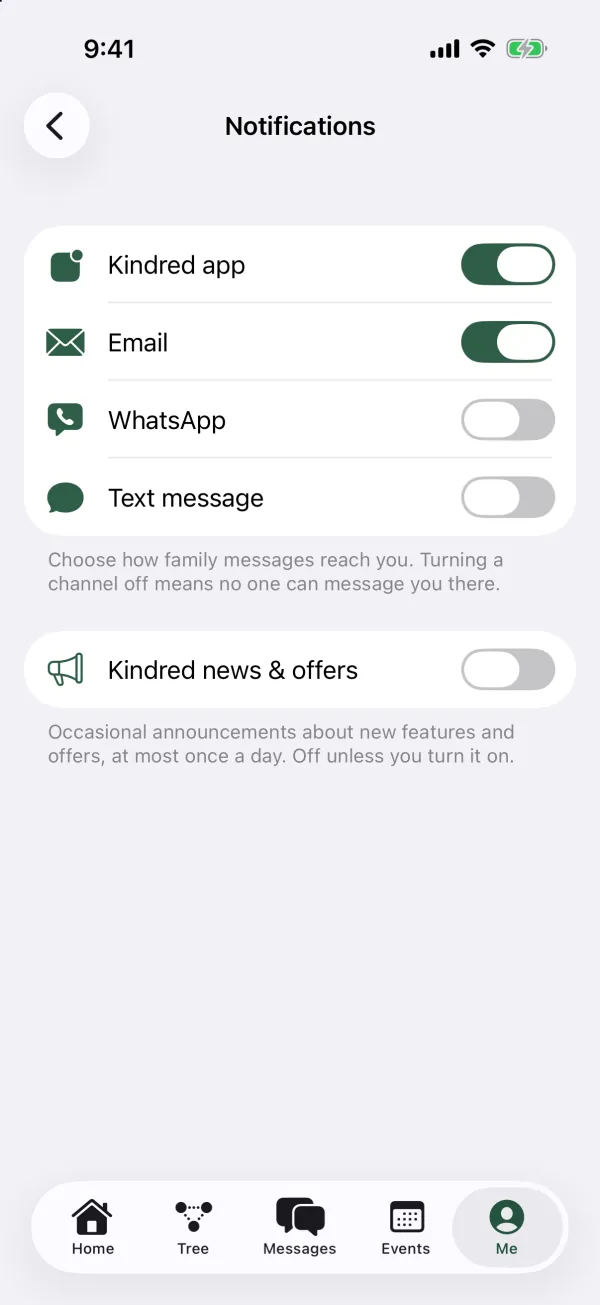
The channels
Turn each channel on or off with its switch. Changes save straight away.
- Kindred app: push notifications on your iPhone or iPad. On by default.
- Email: family messages sent to your sign-in email address. On by default.
- WhatsApp: family messages sent as WhatsApp texts. Off by default.
- Text message: family messages sent as SMS. Off by default.
As the settings say: Choose how family messages reach you. Turning a channel off means no one can message you there.
A few things to know:
- Kindred app covers all push notifications, not only messages. Turn it off and you won’t get push notifications for posts, comments, likes, events, birthdays or new members either. They still appear in your inbox.
- Email, WhatsApp and Text message are only used for family messages. Kindred doesn’t email or text you about posts, likes or comments.
- Whatever you choose, messages sent to you always show in your Messages tab and inbox.
- For WhatsApp and Text message to work, add your number to your profile: go to Me, tap Edit profile and fill in Phone, and WhatsApp number if it’s different from your phone. WhatsApp uses your phone number when there’s no separate WhatsApp number. Text messages always go to your Phone number. See Your profile.
Children’s accounts
Children under 13 only see Kindred app and Email in their settings. WhatsApp and text messages are always off for them, and they can’t add a phone number. When Kindred emails a child, their parents (guardians) also get a copy. See Kids and parents.
Kindred news and offers
Kindred can occasionally tell you about new features and offers. This is off unless you turn it on.
- The switch: in the same notification settings, turn on Kindred news & offers. The note under it says: Occasional announcements about new features and offers, at most once a day. Off unless you turn it on.
- The card on Home: the Home tab may show a card asking Hear about what’s new? Tap Yes, keep me posted to turn news on, or No thanks to hide the card. Either way, the card doesn’t come back on that device or browser, and you can change your mind later in the settings.
Announcements arrive in your inbox and, on iPhone and iPad, as a push notification. You get at most one a day. Some open a web page when you tap them on iPhone or iPad. Turn the switch off at any time to stop them.
Children’s accounts never get announcements, and don’t see the switch or the card.
Common questions
I’m not getting push notifications on my iPhone. What should I check?
Check that Kindred app is on in Kindred’s notification settings, and that notifications for Kindred are allowed in your device’s Settings app. Then sign out of Kindred and sign back in, so your device registers again. See Troubleshooting.
Why don’t I get notifications on Android?
Push notifications aren’t available in Kindred for Android yet. Check the bell on Home for new activity, and turn on Email, WhatsApp or Text message if you’d like family messages to reach you outside the app.
Can I turn off notifications for one family only?
No. Notification settings apply to your whole account, across all your family trees.
Can I stop notifications about posts and likes but keep messages?
Not separately. The Kindred app switch turns push notifications on or off for everything. You could turn it off and keep Email on, so messages still reach you by email while everything else waits in your inbox.
Will turning off email stop the verification and password reset emails?
No. The channel settings only apply to family messages. Kindred still emails you sign-in codes and password reset codes.
Do I get a reminder before an event?
Kindred sends a reminder on the day of each birthday. Other events notify the family once, when they’re added. See Events and birthdays.