Your profile and the Me tab
On this page
The Me tab is where you manage your own account: your profile and photo, your families, your settings, and signing out. This guide goes through everything on it.
Open the Me tab
- On iPhone and Android: tap Me, the last tab at the bottom. Once you’ve added a photo, the tab shows it. A badge shows how many notifications you haven’t read.
- On iPad: tap Me in the sidebar, or your name and photo at the bottom of the sidebar.
- On the web: select your name and photo at the bottom of the sidebar. In a narrow window or on a phone, use the Me tab at the bottom.
What’s on the Me tab
From top to bottom:
- Your profile: your photo, name and email, with Edit profile and My card in the tree.
- Notifications: your notification inbox, with the number of unread notifications. See Notifications.
- My families: the family trees you belong to (the open one has a check mark), plus New family tree, Join with an invite code, Members and Edit history. See Several family trees.
- Children: for parents of children under 13. See Kids and parents.
- Settings: Language, Notifications and Blocked people.
- Share Kindred.
- Sign out and Delete account.
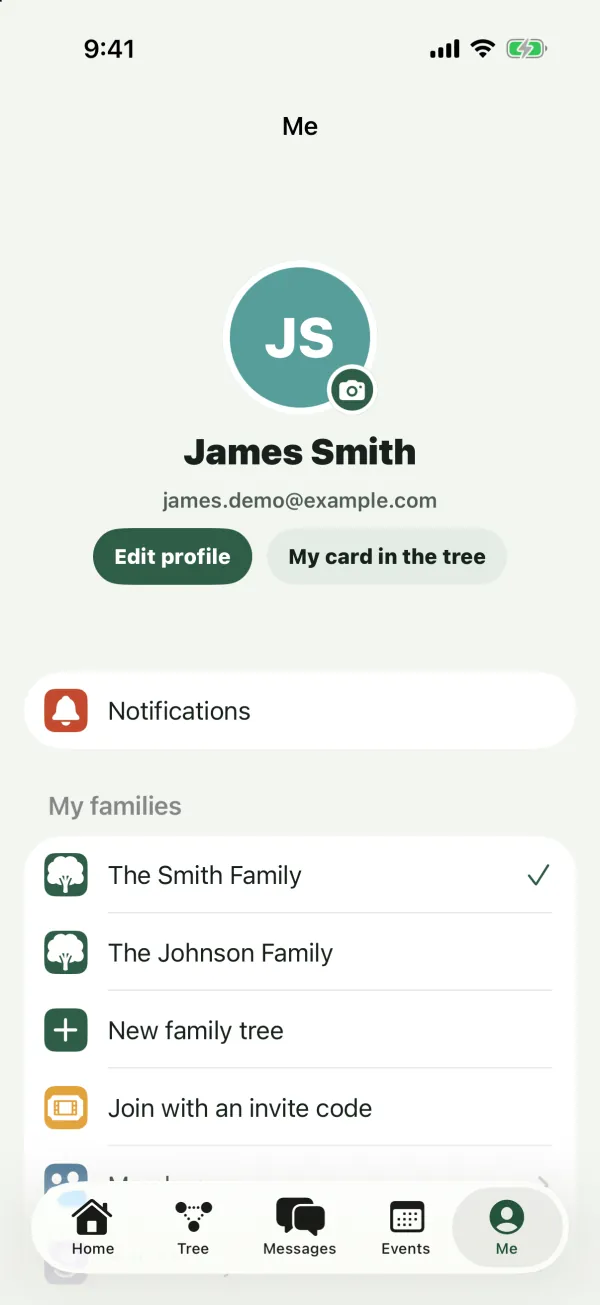
On the web, the Me page shows the same things, laid out as sections on one page: your Members list, Language choices, Notifications switches and Blocked people appear right on the page instead of opening separately. Each family under My families also shows your role in it.
Your photo
Your profile photo appears on your Me tab, next to your posts, comments and messages, and in member lists. It also appears on your card in the family tree when that card has no photo of its own.
Add or change your photo
- On the Me tab, tap your photo (or the circle with your initials). It has a small camera badge.
- Choose a photo.
- On Move and scale, drag and pinch (or zoom) until your face sits nicely in the circle.
- Tap Choose.
Kindred saves a square crop of the photo.
Remove your photo
- On iPhone, iPad and Android: touch and hold your photo, then tap Remove photo. (The same menu has Change photo.)
- On the web: choose Remove photo under your photo.
Edit your profile
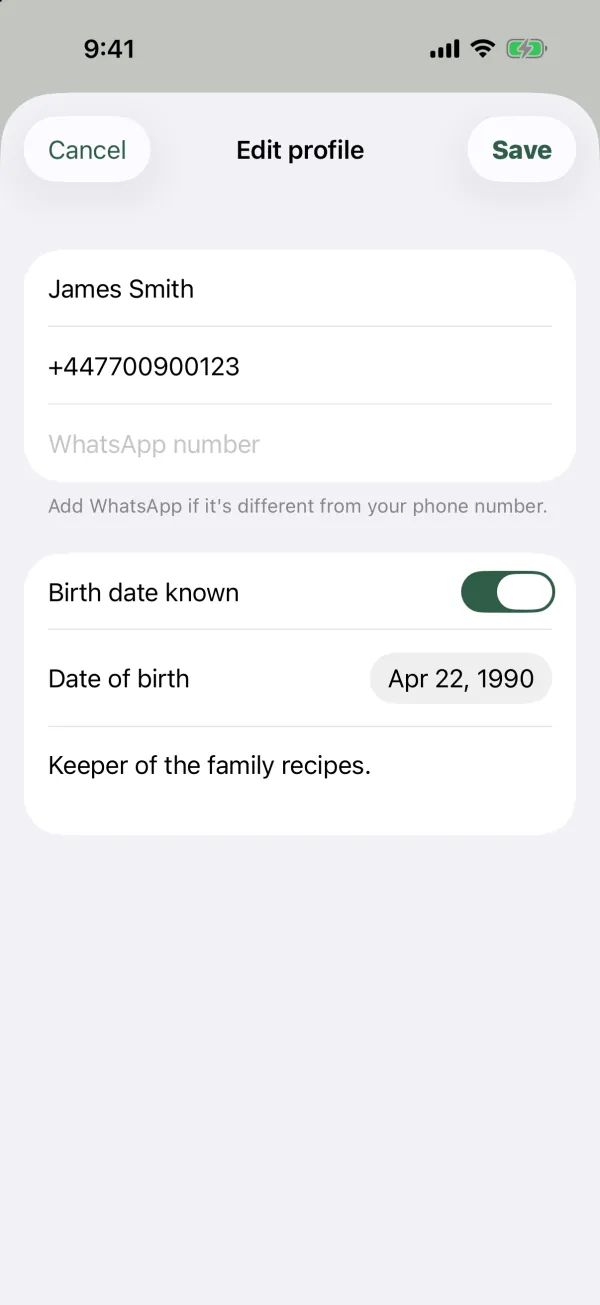
- On the Me tab, tap Edit profile.
- Change any of these:
- Your name (required).
- Phone.
- WhatsApp number: “Add WhatsApp if it’s different from your phone number.”
- Birth date known: turn it on to show Date of birth and pick the date.
- About me: a few lines about yourself.
- Tap Save. To leave without saving, tap Cancel (on the web, close the dialog).
What your phone and WhatsApp number are for
Your phone and WhatsApp number let relatives’ messages reach you on WhatsApp or by text message, if you’ve turned those channels on under Notifications settings. If you leave WhatsApp number empty, Kindred uses your Phone for WhatsApp. Members of your family trees can see your contact details. See Messages and Notifications.
Children’s accounts don’t have Phone or WhatsApp number. See Kids and parents.
Your profile and your card in the tree
Your profile and your card in the family tree are separate. Edit profile changes your account: the name and photo people see on your posts and messages, and how messages reach you. It doesn’t change your card in the tree.
To see or edit your card, tap My card in the tree. This button appears when you’re linked to a person in the open family tree. See Edit a person.
Change the app language
- On the Me tab, open Language. On iPhone, iPad and Android, it’s under Settings, and the row shows your current language. On the web, it’s a section on the Me page.
- Choose English, עברית, Español, Français, Русский or العربية.
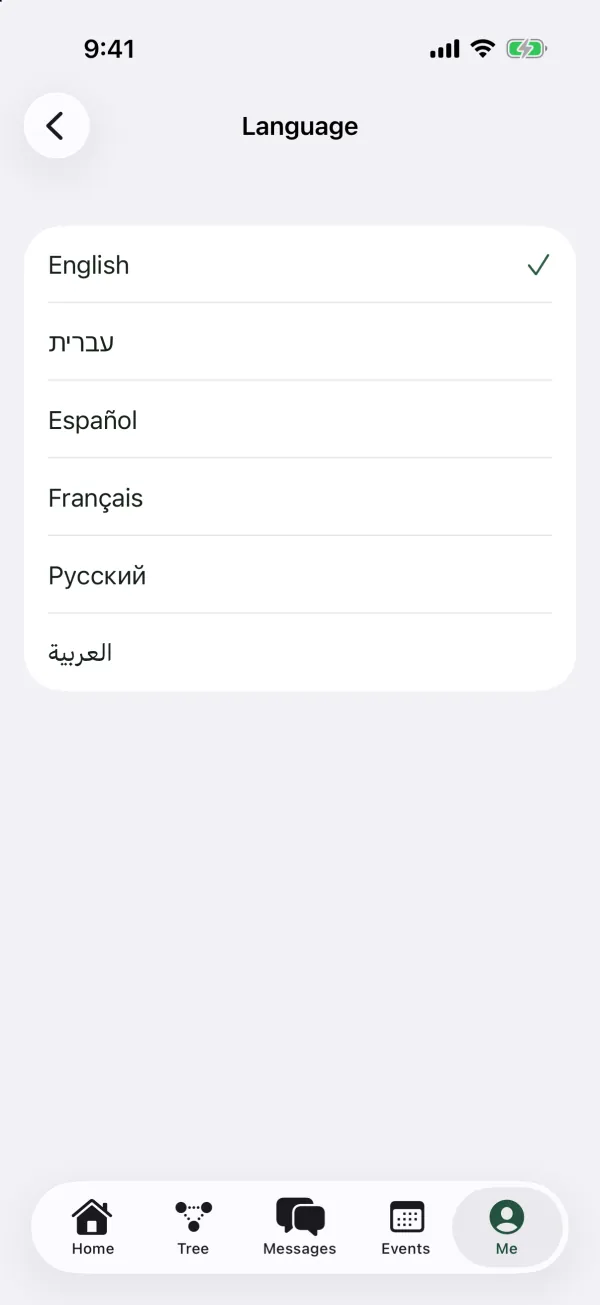
The app switches right away. Hebrew and Arabic are shown right to left. Your choice is saved to your account, so:
- Emails, WhatsApp messages, text messages and notifications that Kindred sends you arrive in this language.
- When you sign in on another device, Kindred switches to this language there too.
Kindred’s language is separate from your phone’s language. Changing one doesn’t change the other.
Notification settings
Under Settings, Notifications has a switch for each way family messages can reach you: Kindred app, Email, WhatsApp and Text message. “Turning a channel off means no one can message you there.” There’s also Kindred news & offers, which is off unless you turn it on.
See Notifications for details.
Blocked people
Under Settings, Blocked people lists everyone you’ve blocked, with Unblock next to each name. If you haven’t blocked anyone, it says “You haven’t blocked anyone.” See Privacy and safety.
Share Kindred
Tap Share Kindred to send a relative or friend a link to Kindred with the message “Build your family tree together on Kindred.”
- On iPhone, iPad and Android: your phone’s share sheet opens, so you can send it by WhatsApp, Messages, email and more.
- On the web: your browser’s share sheet opens if it has one. Otherwise, Kindred copies the link and the button shows Copied.
This shares the Kindred website, not your family tree. To bring someone into your tree, invite them instead. See Invite your family.
Sign out
Tap Sign out at the bottom of the Me tab. There’s no confirmation step.
When you sign out on iPhone or iPad, that device stops getting Kindred notifications until you sign in again. Your account, family trees and settings stay as they are. Sign in again any time with I already have an account.
Delete your account
Delete account is at the very bottom of the Me tab. See Delete your account before you use it.
Common questions
Can I change the email I sign in with?
The Me tab doesn’t have an option to change your sign-in email. Contact support if you need help.
Can other members see my birth date?
Your profile’s date of birth isn’t shown in member lists. Your card in the family tree has its own date of birth, which family members can see.
I changed my name in Edit profile, but the tree still shows my old name. Why?
Your profile and your card in the tree are separate. Tap My card in the tree and edit your card too.
Why doesn’t my photo show on my card in the tree?
Your card uses its own photo when it has one. To change it, open My card in the tree and change the photo there.
Why can’t I see Phone or WhatsApp in Edit profile?
Children’s accounts (under 13) don’t have these fields.