Send messages to your family
On this page
Messages let you write one note and send it to everyone in your family tree, or to the people you pick. Each message can go out over several channels at once (the Kindred app, WhatsApp, email and text message), and each person only gets it on the channels they’ve allowed.
Where to find messages
Messages belong to the family tree you have open. If you’re in more than one family, switch trees to see the messages of another one.
- On iPhone: tap the Messages tab at the bottom of the screen.
- On iPad: choose Messages in the sidebar.
- On Android: tap the Messages tab at the bottom of the screen.
- On the web: choose Messages in the sidebar. On a narrow window or phone browser, use the Messages tab at the bottom.
Everyone in the family can read and send messages, whatever their role. Viewers can message too.
What you see in Messages
The list shows the newest messages first. Each message shows:
- The sender’s photo and name. Messages you sent show You.
- Who it went to: to everyone, or to followed by up to three first names (an ellipsis means there were more).
- How long ago it was sent.
- The subject, if the sender wrote one, in bold.
- The message text.
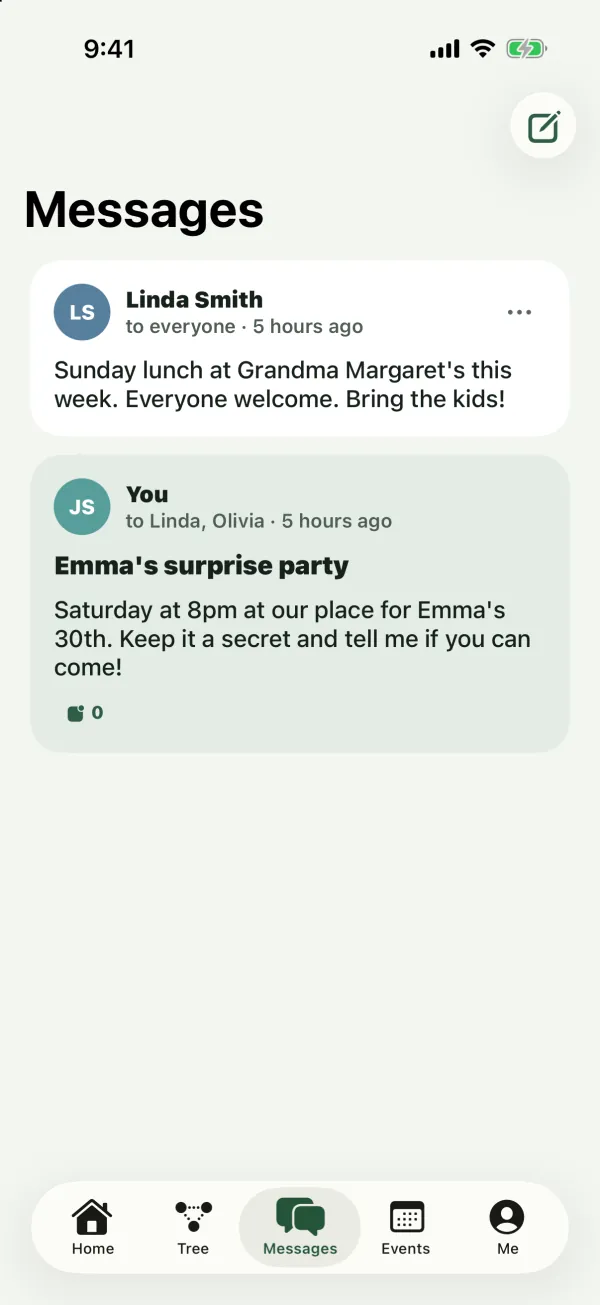
You see a message if you sent it, if it was sent to you, or if it was sent to everyone. Messages sent to chosen people are only visible to the sender and those people. A message sent to everyone stays visible to the whole family, including people who join the tree later.
On messages you sent, small badges show which channels you used, with the number of people each channel reached.
To check for new messages, pull down on the list to refresh (on iPhone, iPad and Android).
When the list is empty you see No messages yet and a New message button.
Send a message
- In Messages, tap the New message button (the pencil icon at the top on iPhone, iPad and Android; the New message button on the web).
- Under To, choose who gets it:
- Everyone, followed by the number of other members (for example Everyone · 6). This is selected when you start.
- Choose people opens a list of the family’s members. Tap each person you want so a check mark appears, then tap Done. The chip then shows how many people you picked, for example 3 people.
- Optionally, write a Subject (for email). It’s used as the email subject and shows in bold above your message everywhere.
- Write your text in the Message field.
- Under Send via, turn the channels you want on or off. See the next section for how each one works.
- Tap Send.
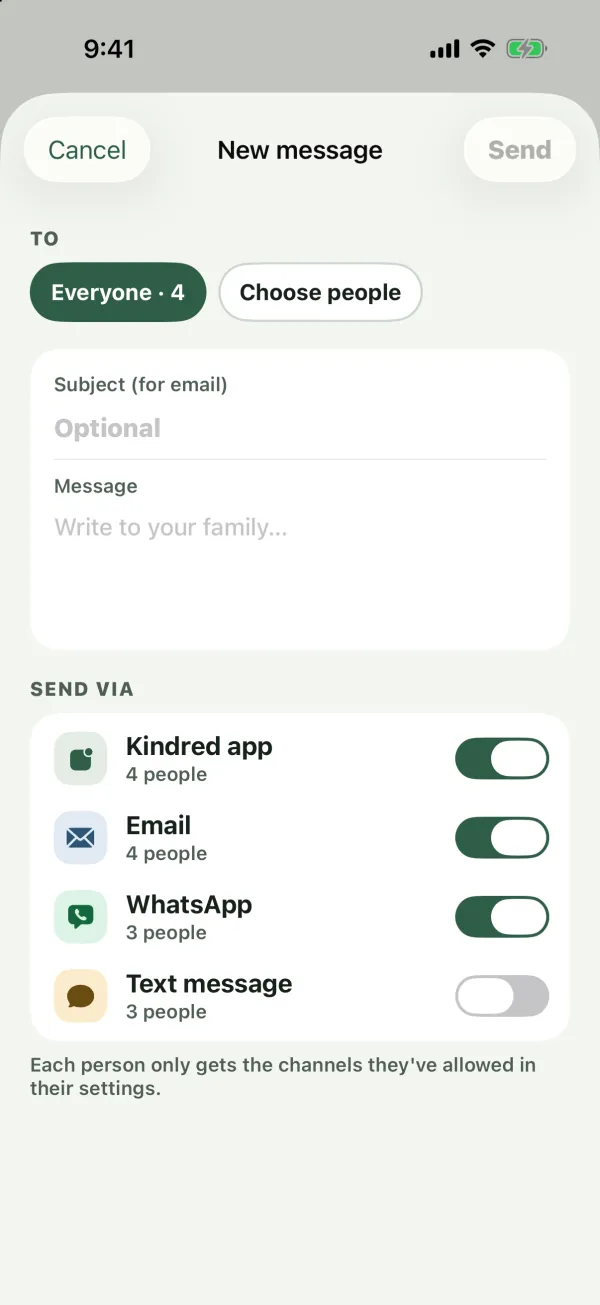
You can’t send a message to yourself: you never appear in the list of people. If no one else has joined the tree yet, you see No one else has joined yet. Invite your family first. and Send stays off. Send is also off until you’ve written some text and turned on at least one channel.
Note: A subject can be up to 200 characters, and a message up to 5,000 characters.
After you send
You see Message sent with one line per channel you chose, for example Email: 4 sent · 0 failed. Tap Done to close it. The message then appears at the top of your Messages list.
Messages can’t be edited or deleted after you send them, so read yours through before you tap Send.
The four channels
The Send via section lists four channels. Under each one, Kindred shows how many of your chosen recipients it could reach.
- Kindred app: the message appears in the recipient’s Messages list and in their notifications inbox, and Kindred sends a push notification to their iPhone or iPad. On by default.
- WhatsApp: Kindred sends the message as a WhatsApp text to the recipient’s WhatsApp number, or to their phone number if they haven’t added a separate WhatsApp number. On by default.
- Email: Kindred emails the message to the recipient’s sign-in email address. On by default.
- Text message: Kindred sends an SMS to the recipient’s phone number. Off by default.
The counts under each channel are based on the contact details people have added. They don’t take each person’s own channel choices into account, so the real number reached can be lower.
WhatsApp and text messages read like this: the sender’s name, the family’s name in parentheses, then the text (with the subject on its own line first, if there is one). Emails have the subject [sender] · [family]: [subject], or New message from [sender] when there’s no subject, and end with a reminder to open Kindred to reply.
Each person’s own choices come first
As the composer says: Each person only gets the channels they’ve allowed in their settings. Every member decides in their own notification settings which channels can reach them. If you send by WhatsApp to someone who has WhatsApp turned off, they don’t get it on WhatsApp.
Out of the box, every account allows the Kindred app and Email, and has WhatsApp and Text message turned off. So WhatsApp and text messages only reach people who have turned those channels on and added a phone or WhatsApp number to their profile. See Notifications to change your own choices.
No matter which channels you pick, every recipient finds the message in their Messages list in Kindred, and gets an entry in their notifications inbox.
Children’s accounts
Children under 13 have Kindred accounts with fewer channels. They can’t add a phone or WhatsApp number, and WhatsApp and text messages are always off for them. Messages reach a child in the Kindred app and by email only. When Kindred emails a child, each of their parents (guardians) also gets a copy of the email. See Kids and parents.
Message one person
You can also start a message to a single relative:
- From their person page: if the person has a Kindred account and isn’t you, tap Message among the contact buttons. The composer opens with that person already chosen.
- To wish happy birthday: see Events and birthdays for the Send wishes and Wish buttons, which open a message with Happy birthday, [name]! 🎉 already written.
When a message goes to exactly one person who has a WhatsApp or phone number, the composer also shows Open in my WhatsApp instead. This opens WhatsApp on your own phone or computer with a chat to that person and your text filled in, so it comes from your own WhatsApp number. A message sent this way is between you and them in WhatsApp: it isn’t saved in Kindred’s Messages list.
Delivery report
On messages you sent, each channel badge shows how many people it reached. The summary after sending shows the full picture, sent and failed, for every channel you chose.
- A person counts as sent on a channel when Kindred delivered it there.
- Failed means Kindred tried and the delivery didn’t go through (for example, an unreachable number).
- People who turned that channel off, or have no address for it, aren’t counted at all.
- For the Kindred app channel, only people with Kindred on an iPhone or iPad count, because push notifications go to those devices.
Only the sender sees these counts.
Report or block
If a message bothers you, tap the ⋯ button on it (it only appears on messages from other people):
- Report sends the message to the Kindred team to review.
- Block [name] hides that person’s posts, comments and messages from you, and stops their messages and notifications from reaching you on any channel. Blocking doesn’t remove them from the family tree.
You can unblock people from Me under Blocked people. See Privacy and safety.
Common questions
Can people reply to a message?
There are no reply threads. To answer, send a new message, for example to the person who wrote to you using Choose people. Emails and WhatsApp messages from Kindred go out from Kindred, not from the sender, so replying to them doesn’t reach your relative.
Why did my WhatsApp message reach fewer people than the count showed?
The count under each channel only checks whether people have a number. Each person also has to allow WhatsApp in their own settings, and WhatsApp is off until they turn it on.
Why didn’t my relative on Android get a notification?
Kindred for Android doesn’t show push notifications yet. Your message still appears in their Messages tab and their notifications inbox, and reaches them by email, WhatsApp or text message if they’ve allowed those.
Can I delete or edit a message I sent?
No. Once sent, a message stays as it is. If you made a mistake, send a short follow-up.
Who can see a message I send to chosen people?
Only you and the people you chose. Other members of the tree don’t see it.
Do new family members see old messages?
They see the messages that were sent to everyone. Messages sent to chosen people stay between those people.