Family feed
On this page
The family feed on the Home tab is where your family shares news, memories and photos. Only members of the tree can see it. This article covers writing posts, photos, likes and comments, deleting posts, and how to report or block someone.
What’s on the Home tab
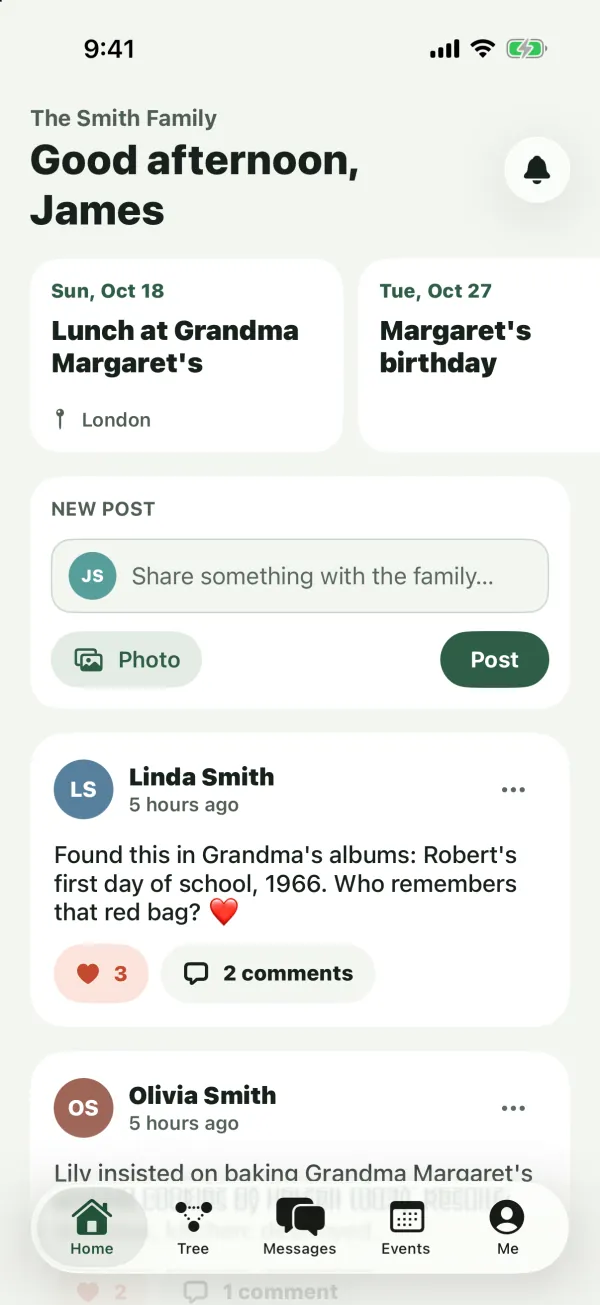
From top to bottom, the Home tab shows:
- The tree’s name and a greeting, such as “Good morning, Emma”.
- The bell, which opens your notifications. A red badge shows how many are unread. See Notifications.
- Upcoming events: a row of cards for birthdays and other family events in the next 30 days (up to 8). Today’s events are highlighted. A birthday card for a family member who’s on Kindred has a Send wishes button, which opens a message to them that starts with “Happy birthday, Grace! 🎉”. See Events and birthdays.
- The New post box, if your role lets you post.
- Posts, newest first. More posts load as you scroll down. On iPhone, iPad and Android, pull down to refresh.
When the feed has no posts yet, you see “Your family feed is quiet. Share a photo or a memory to get your family talking.”
One feed per tree
Each family tree has its own feed. Posts you share go only to the tree you have open, and the feed shows only that tree’s posts. To see another tree’s feed, switch trees (see Multiple family trees). There’s no way to post to several trees at once.
Who can see and do what
- Everyone in the tree (owner, admins, collaborators and viewers) can see the feed, like posts and write comments.
- Collaborators, admins and the owner can write posts. Viewers don’t see the New post box.
- People outside the tree can’t see the feed at all. Kindred trees are private and open only to invited family.
Children with their own accounts use the feed like everyone else, within their role in the tree.
Write a post
- On the Home tab, tap Share something with the family… in the New post box. On iPhone, iPad and Android, you can also tap Photo or Post in the same box.
- Write your text in the New post screen.
- To add pictures, tap Add photos and choose up to 6 photos.
- Tap Post.
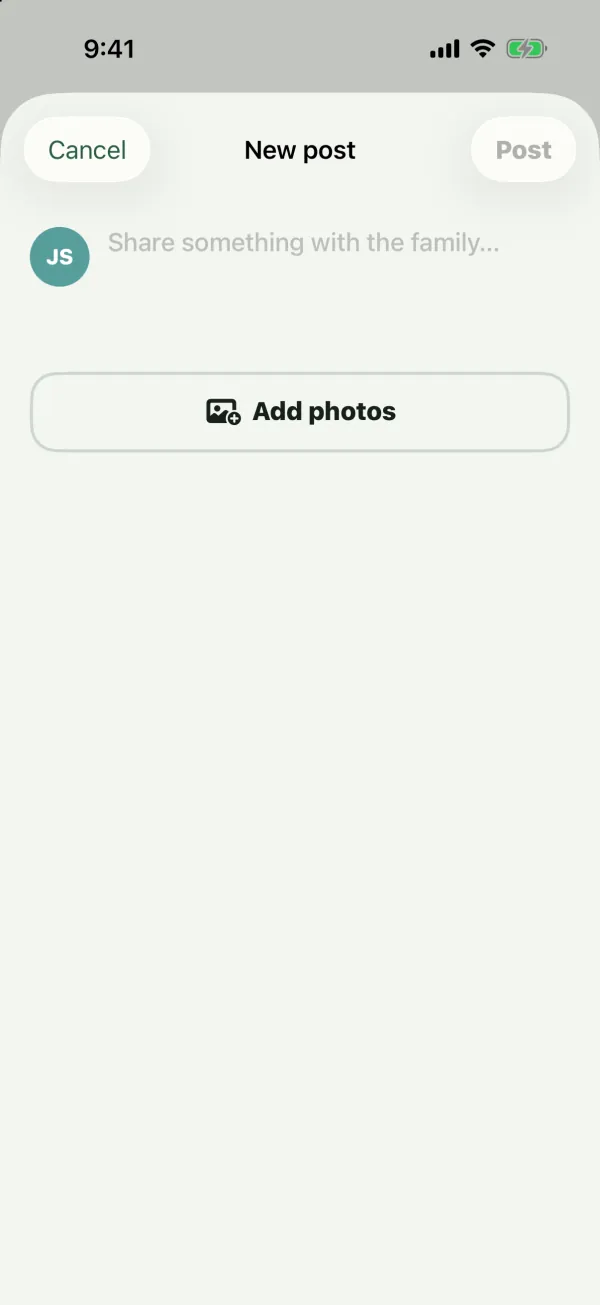
A post needs text, at least one photo, or both. The Post button stays off until you add one of them. Text can be up to 5,000 characters.
To leave without posting, close the New post screen. On iPhone and iPad, tap Cancel.
Choosing photos
- You can attach up to 6 photos to one post. Photos only: videos and other files aren’t supported.
- On iPhone, iPad and Android, choosing photos again replaces your selection. On iPhone and iPad, photos you already picked stay checked in the picker, so you can add or remove some.
- On the web, Add photos adds to the photos you already chose and shows how many you have (for example 3/6). Each photo has a remove button.
- Before upload, Kindred converts photos to JPEG and makes very large pictures smaller.
Who gets notified
When you post, everyone else in the tree gets a notification: “Emma shared a new post”, followed by the beginning of your text. Notifications arrive in the app’s inbox. People using Kindred on iPhone or iPad who have push notifications turned on also get a push notification.
Look at photos
Tap a photo in a post to see it larger. On iPhone, iPad and Android it opens full screen, and you can pinch to zoom. On the web it opens in a larger window. A post with one photo shows it wide. Posts with several photos show them in a grid.
Like a post
Tap the heart under a post. The heart fills in and the number goes up. Tap it again to remove your like.
The post’s author gets a notification (“Emma liked your post”), unless you like your own post. The feed shows how many people liked a post, but not who.
Comment on a post
- Tap the comments button under the post (for example 3 comments).
- Read the comments, oldest first. If there are none yet, you see “No comments yet. Say something kind!”
- Type in Add a comment… and tap the send button.
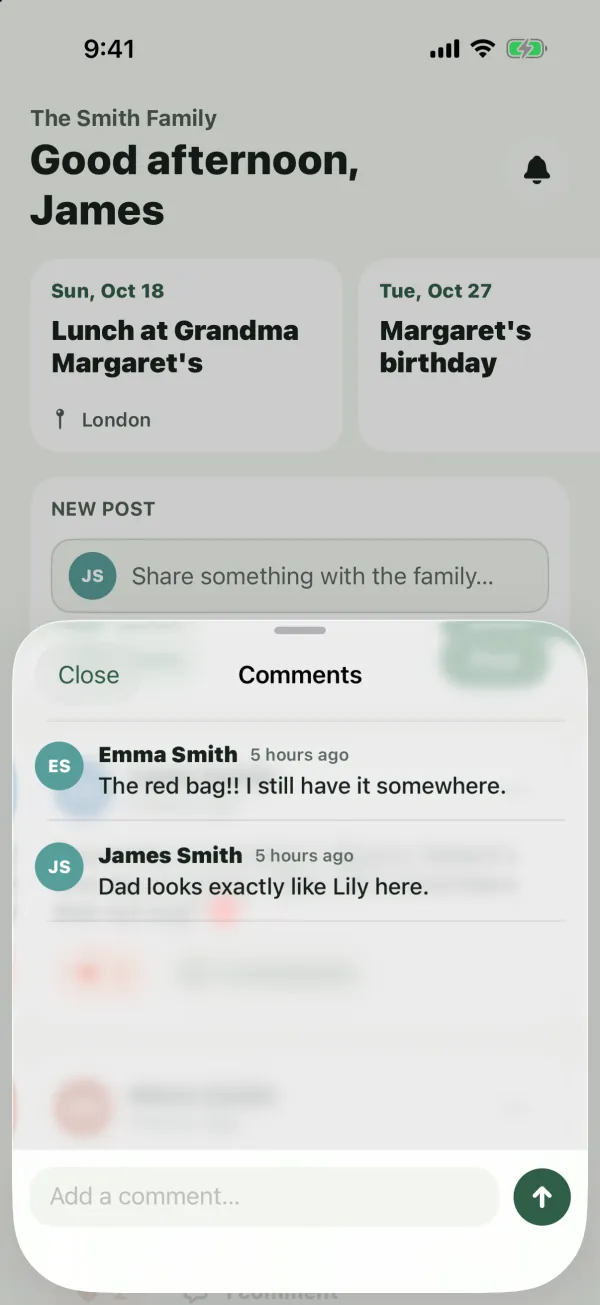
Comments can be up to 2,000 characters. The post’s author gets a notification with the beginning of your comment, unless it’s your own post. On the web, pressing Enter sends the comment, and Shift+Enter starts a new line.
Edit or delete
Posts and comments can’t be edited
Once you share a post or a comment, its text and photos can’t be changed. If you need to fix something, delete the post and share it again.
Delete a post
- Tap the more button (More options, the three dots) at the top right of the post.
- Tap Delete.
- You can delete your own posts. Admins and the owner can delete anyone’s post.
- The post is deleted right away, without a confirmation, and it can’t be undone.
- Deleting a post also deletes all its comments and photos.
Comments
There’s no way to delete a single comment. A comment is removed when its post is deleted, or when its author deletes their Kindred account.
Report a post or comment
If something in the feed is spam, hurtful or inappropriate, you can report it to the Kindred team. You can report other people’s posts and comments, but not your own.
To report a post, tap the more button on the post and choose Report.
To report a comment:
- On iPhone and iPad, swipe left on the comment and tap Report.
- On Android, touch and hold the comment, then tap Report.
- On the web, choose More options next to the comment, then Report.
Then:
- Choose a Reason: Spam, Harassment or abuse, Inappropriate content (selected to start with) or Something else.
- If you like, add more in Anything else we should know? (optional).
- Tap Send.
You see “Thanks, we’ll review it.” The Kindred team receives the report with the content and reviews it. The person you reported isn’t told.
Note: Reporting doesn’t hide the post or comment from you. If you don’t want to see someone’s posts anymore, block them.
Block someone
- Tap the more button on one of their posts.
- Tap Block with their name (for example Block Thomas).
The block happens right away, without a confirmation, and the feed refreshes. Blocking works across your whole account, in every tree you share with that person:
- You no longer see their posts or their comments.
- You don’t get notifications about their activity, such as their likes, comments and new posts.
- Their messages are hidden from you, and new messages they send don’t reach you on any channel.
- They aren’t told that you blocked them. They’re still a member of the tree, and they can still see your posts.
You can also block someone from a message on the Messages tab. See Messages.
Unblock someone
- Open the Me tab.
- Under Settings, tap Blocked people. On the web, Blocked people is a section of the Me page.
- Tap Unblock next to the person.
Their posts and comments show in your feed again. If you haven’t blocked anyone, the list says “You haven’t blocked anyone.”
Tip: If someone shouldn’t be in the family tree at all, an admin can remove them. See Members and roles.
Common questions
Why don’t I see the New post box?
You’re a viewer in this tree. Viewers can like and comment, but not post. Ask an admin to make you a collaborator.
Can I post to all my family trees at once?
No. Each tree has its own feed. Switch to the other tree and post there too.
Who can see my posts?
Only the members of the tree you posted in. People who blocked you don’t see them.
Can I see who liked my post?
No. Kindred shows the number of likes. You get a notification each time someone likes your post.
What happens to my posts if I leave a tree?
They stay in that tree’s feed. If you delete your Kindred account, all your posts, comments and likes are deleted. See Delete your account.
Can I share videos?
Not at the moment. Posts can have text and up to 6 photos.