Add relatives to your tree
On this page
Your tree grows one relative at a time: a parent, a child, a partner or a sibling of someone already in it. This article covers every way to add a relative, how to link a person who is already in the tree instead of creating a duplicate, how to fill in details from your phone’s contacts, and which relationships Kindred allows.
Who can add relatives
- Owners and admins can add relatives to anyone in the tree.
- Collaborators can add relatives to people in their own branch of the family: the person shown as them, their partners, their parents, grandparents and every ancestor, their children, grandchildren and every descendant, the partners of all of those, their brothers and sisters, and anyone they added themselves. A collaborator who isn’t shown as anyone in the tree can add relatives only to people they added.
- Viewers can’t add anyone. The Add a relative button doesn’t appear for them.
Children’s accounts follow the role their parent chose when approving them (Viewer or Collaborator). See Members and roles for the full list of permissions.
Note: When you choose who the new relative belongs to, Kindred lists only the people you’re allowed to edit.
Four ways to start
- The Add a relative button on the tree.
- On iPhone and Android: tap Add a relative at the bottom left of the Tree tab.
- On the web: click Add a relative at the top of the tree page. The form starts with you as the person they’re related to, or, on the web, with the person you’ve selected.
- Press and hold a person on the tree (iPhone, iPad and Android). A menu titled Add a relative of James (with that person’s name) offers Parent, Child, Partner and Sibling. Pick one, and the form opens with that relationship already chosen.
- The Add buttons on a person’s page. Open someone and use Add a parent, Add a child, Add a partner or Add a sibling. These let you add someone new or link someone already in the tree. On a narrow screen or in a language with long labels, the buttons show the short names (Parent, Child, Partner, Sibling) under an Add family heading.
- The Add a relative of James button at the bottom of a person’s page. It opens the form with that person already chosen.
On an empty tree, the first person is added with Add the first person, and no relationship is needed.
Fill in the Add a relative form
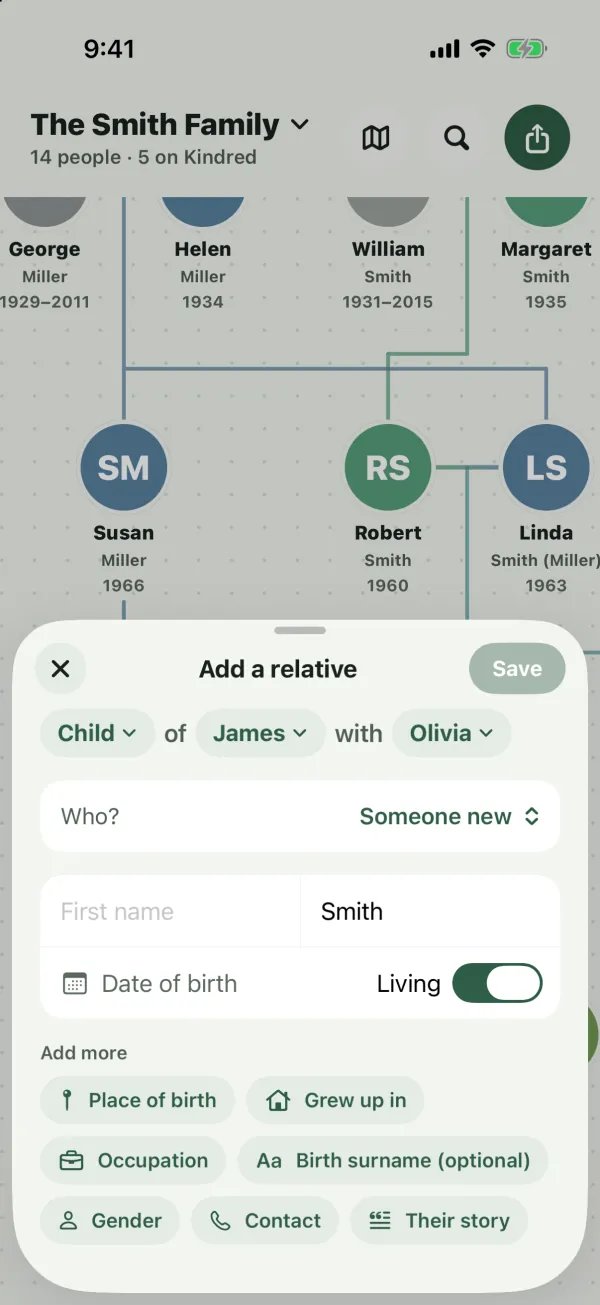
On iPhone, iPad, Android, and from the tree page on the web, Add a relative opens a short form. It starts as a half-height sheet on phones and grows when you add more details.
1. Say who they are
The top of the form reads like a sentence, for example Child of James with Emma. Each colored word is a menu:
- The relationship: Parent, Child, Partner or Sibling.
- The person: who they’re related to. The list shows everyone you can edit, in alphabetical order.
- The other parent (only when adding a child of someone who has a partner): pick which partner is the child’s other parent, or No one else. If the person has exactly one partner, Kindred picks them for you. Change it when the child’s other parent isn’t in the tree or is someone else.
2. Someone new, or someone already in the tree
When you add a Parent, Child or Partner, and someone already in the tree could be that relative, a Who? row appears. It’s set to Someone new. Open it to see the people Already in the tree who can be linked this way, and pick one to link them instead of creating a duplicate. The name fields disappear, and Save connects the two people.
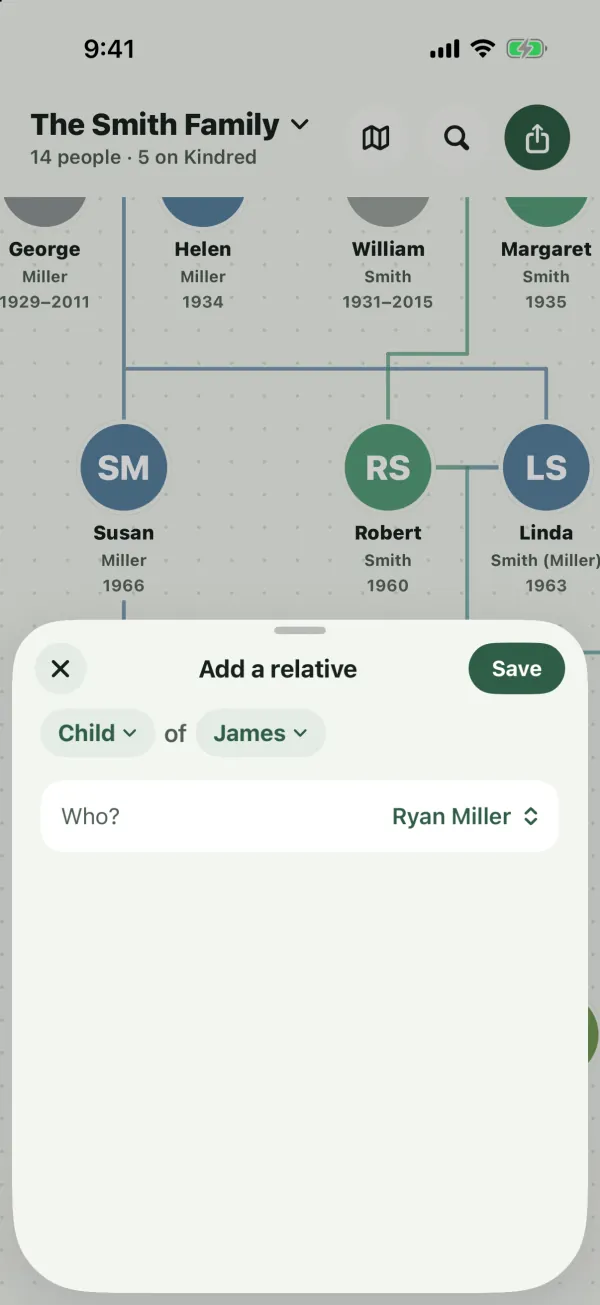
For a Sibling who is already in the tree, use Add a sibling on the person’s page instead (see “Link a sibling who is already in the tree” below).
3. The essentials
- First name and Last name. Only the first name is required.
- Date of birth. Tap it to choose a date. Tap the small X to clear it. Dates in the future aren’t allowed.
- Living. On by default. Turn it off for someone who has passed away.
Kindred suggests a last name for you: the last name of the person they’re related to. For a sibling, it suggests that person’s birth surname when they have one (so a married woman’s brother gets her maiden name, not her married name). If you change the relationship or the person, the suggestion updates, unless you’ve typed your own.
4. Add more
Under Add more, tap a chip to add that detail:
- Place of birth and Grew up in. Search for a city, town or village and pick a result to put the place on the family map. If the place no longer exists or can’t be found, tap Use “…” (no map pin) to save the text as typed. See Explore where your family comes from.
- Occupation.
- Birth surname (optional), for example a maiden name.
- Gender: Male, Female, Other or Not specified. Kindred uses it for relationship words such as “Your sister” or “Your brother”.
- Date of passing. Only offered when Living is off.
- Contact: Email and Phone, plus Fill in from Contacts on iPhone, iPad and Android (see below). Only offered when Living is on.
- Their story: stories, memories, what made them special.
5. Save
Tap Save. It’s available once there’s a first name, or once you’ve picked someone in Who?. The new person appears on the tree in the right place, with the lines drawn for you. To leave without adding anyone, tap the X (iPhone, iPad and Android) or close the window (web).
The full form on the web
On the web, Add a relative of James on a person’s panel, and Someone new in the Add a parent, child, partner or sibling windows, open the full details form instead of the short one. It has the same fields, laid out in sections:
- Who are they? with Relationship, Of, and Other parent (when adding a child of someone with a partner).
- Name: First name, Last name, Birth surname (optional), Gender.
- Life: Birth date known and Date of birth, Place of birth, Grew up in, Occupation, Living, Date of passing known and Date of passing.
- Contact (living people only): Email and Phone.
- Their story.
Add a child
When you add a child of someone who has a partner, Kindred asks who the other parent is. A partner isn’t always the child’s parent, for example in a second marriage, so check the with choice (or Other parent on the web full form):
- Pick a partner to make the child theirs too.
- Pick No one else if the other parent isn’t in the tree, or isn’t one of the partners.
If you later add the other parent, open the child and use Add a parent to link them.
Add a sibling
A brother or sister is connected through the parents they share.
- When the person already has parents in the tree, a new sibling gets the same parents automatically.
- When the person has no parents in the tree yet, Kindred creates a shared parent named Unknown parent and connects both siblings to it. You can open Unknown parent later and edit their name and details, or keep them as a placeholder until you know more.
Link a sibling who is already in the tree
- Open one of the two people and tap Add a sibling.
- Pick the other person under Already in the tree.
- If they could share both parents or only one, Kindred asks Which parents do James and Robert share?:
- Both Linda and William (full siblings)
- Only Linda (half-siblings)
- Kindred adds the missing parent links for you.
If neither person has a parent in the tree yet, Kindred creates an Unknown parent for both of them, as above. If something goes wrong partway, any links already made are removed again, so you aren’t left with half a relationship.
Link someone who is already in the tree
The Add a parent, Add a child, Add a partner and Add a sibling buttons on a person’s page open a window with:
- Someone new at the top, which opens the form to add a new person with that relationship chosen.
- A Find someone search box.
- Already in the tree: everyone who can be linked to this person that way, in alphabetical order. Tap a name to link them. People you aren’t allowed to edit are shown but can’t be picked.
If nobody fits, you’ll see “No one in the tree can be linked here.”
Tip: Linking is the way to fix a duplicate. If James was added twice, link the correct James where he belongs, then delete the extra one. See Edit a person’s details.
Fill in from your phone’s contacts
When the relative is in your phone’s address book, you can copy their details instead of typing them.
On iPhone and iPad
- In Add a relative, tap Contact under Add more (or, when editing someone, find the Contact section).
- Tap Fill in from Contacts.
- Pick the person in your contacts.
Kindred doesn’t ask for access to your contacts. The contact picker runs on its own, and Kindred only ever receives the one contact you pick.
On Android
- In Add a relative, tap Contact under Add more (or, when editing someone, find the Contact section).
- Tap Fill in from Contacts.
- The first time, Android asks whether Kindred may access your contacts. Then pick the person.
If you don’t allow access, you can still pick a contact, but only their name and picture come across. Their email, phone number and birthday need the permission.
What comes across
- Email: the contact’s first email address. It replaces anything you typed.
- Phone: the contact’s mobile number when there is one (that’s the number WhatsApp and text invitations reach), otherwise their first number. It replaces anything you typed.
- First name and Last name: only filled in when those fields are empty (or still hold Kindred’s suggested last name, when adding).
- Date of birth: only filled in when it’s empty, and only when the contact’s birthday includes the year.
- Picture: the contact’s photo appears under the fields with the note “Photo from the contact, saved with these details”. It becomes the person’s photo when you tap Save. Tap the X beside it if you don’t want it. When you edit someone who already has a photo, the contact’s picture isn’t used.
Nothing is saved until you tap Save, so you can still change any field.
On the web
The short Add a relative form on the web doesn’t offer contacts. In the full details form (when editing a person, or adding from a person’s panel), browsers that support picking a contact, such as Chrome on Android, show Fill in from Contacts. It fills in the email and phone, and the first and last name when those are empty. Pictures and birthdays don’t come across on the web. In other browsers, type the details in.
Relationship rules
To keep the tree sensible, Kindred only offers relationships that make sense. When you link people, the lists leave out anyone who would break these rules:
- Nobody can be their own relative, and a link can’t be added twice.
- At most two parents. A person who already has two parents can’t get another one. Use Make partner of… or Remove relationship first if a parent was linked by mistake.
- No loops. Someone can’t become the parent, child or partner of their own ancestor or descendant. You’ll see “That link would make someone their own ancestor.” if you try.
- Partners aren’t parents and children. A parent and child can’t be partners, and partners can’t also be parent and child.
- Siblings stay siblings. A brother or sister can’t also be someone’s parent, child or partner.
- Partners aren’t made into siblings. A partner’s parent can’t also become someone’s parent, because the two partners would then be brother and sister.
- Siblings must have room for the shared parent. Linking two people as siblings can’t give either of them a third parent, and two people who already share a parent are siblings already.
Fix or remove a relationship
If a relationship was saved the wrong way, for example a parent added as a partner, you can change it without deleting anyone.
- Open one of the two people.
- Under Family, find the other person. Only rows labeled Parent, Partner or Child can be changed (siblings and grandchildren come from other links).
- Tap the ⋯ button on that row (Relationship options).
- Choose Make parent of James, Make partner of James or Make child of James, or Remove relationship.
Removing asks “Remove the link between James Smith and Emma Smith? Both stay in the tree.” Both people stay; only the line between them goes.
You need to be able to edit both people to change or remove a relationship. If the new relationship isn’t allowed, Kindred puts the old one back and shows why.
What happens after you add someone
- Everyone in the tree sees them, in the same place on the tree.
- The change is recorded in the tree’s Edit history, with your name: the new person and each relationship that was created. See Change history and undo.
- Linked trees grow too. If you add a child or partner to someone who is linked to the same person in another of your trees, the new relative is copied into that tree as well, and kept in sync. A new parent isn’t copied, because they belong to that side of the family; the other tree offers them under Family in your other trees with an Add here button instead. See Keep several family trees.
- They aren’t invited automatically. To invite a living relative to Kindred, open them and tap Invite James to Kindred. See Invite your family.
Common questions
I added someone twice. How do I fix it?
Make sure the copy you want to keep has the right relationships (link them with Add a parent, Add a child and so on), then open the duplicate, tap ⋯ and choose Delete. See Edit a person’s details for who can delete.
Why can’t I pick someone in the “Who?” list or in “Already in the tree”?
They’d break one of the relationship rules above (for example, they already have two parents), or you aren’t allowed to edit them. Collaborators can only change their own branch of the family.
Why does the person menu only list some people?
The person you add a relative to must be someone you can edit. Collaborators see their own branch; admins and owners see everyone.
How do I add a step-parent or a second partner?
Add them as a Partner of the parent. For each child, choose whether they’re also that child’s parent with the with choice when adding a child. A person can have several partners.
Can I add someone who isn’t a parent, child, partner or sibling?
Kindred records four kinds of relationship: parent, child, partner and sibling. Every other relationship (grandparents, cousins, in-laws) comes from those. To add a cousin, for example, add their parent as a sibling of your parent, then add the cousin as that person’s child. To keep a tree for a friend’s family, create a separate tree for them. See Keep several family trees.
Do I need the exact date of birth?
No. Every field except the first name is optional. Leave the date empty if you don’t know it, and add it later from the person’s page.
Why did “Unknown parent” appear in my tree?
You added a sibling to someone who had no parents in the tree. Kindred created a shared parent to connect them. Open Unknown parent and edit their details when you know who it is.