Edit a person's details
On this page
Every person in your tree has their own page with their dates, places, story, photo, documents and family. This article walks through everything on that page, how to edit each detail, who is allowed to change what, and how to remove someone from the tree.
Open a person’s page
Tap or click anyone on the tree, or find them with Find someone.
- On iPhone (upright) and Android: the page opens full screen. Tap the back button to return.
- On iPad, and iPhone on its side: it opens in a panel beside the tree.
- On the web: it opens in a panel on the right (full screen on a phone-sized screen).
You can also open a person from their row under Family on a relative’s page.
What the page shows
The header
- Their photo. If you can edit the person, a small camera badge sits on it. See Photos below.
- Their full name, and their birth surname underneath when they have one, for example “born Miller”.
- How they’re related to you, such as “Your sister”, “Your grandfather”, “Your cousin” or “Your mother-in-law”, followed by Born in and their place of birth. On your own page it says This is you. When the place of birth has a map pin, tap this line to open Where we come from, the family map.
- On Kindred, with a green dot, when the person has joined Kindred and is a member of this tree.
- For someone who has passed away: Passed away with the date, when it’s known, and an In loving memory label.
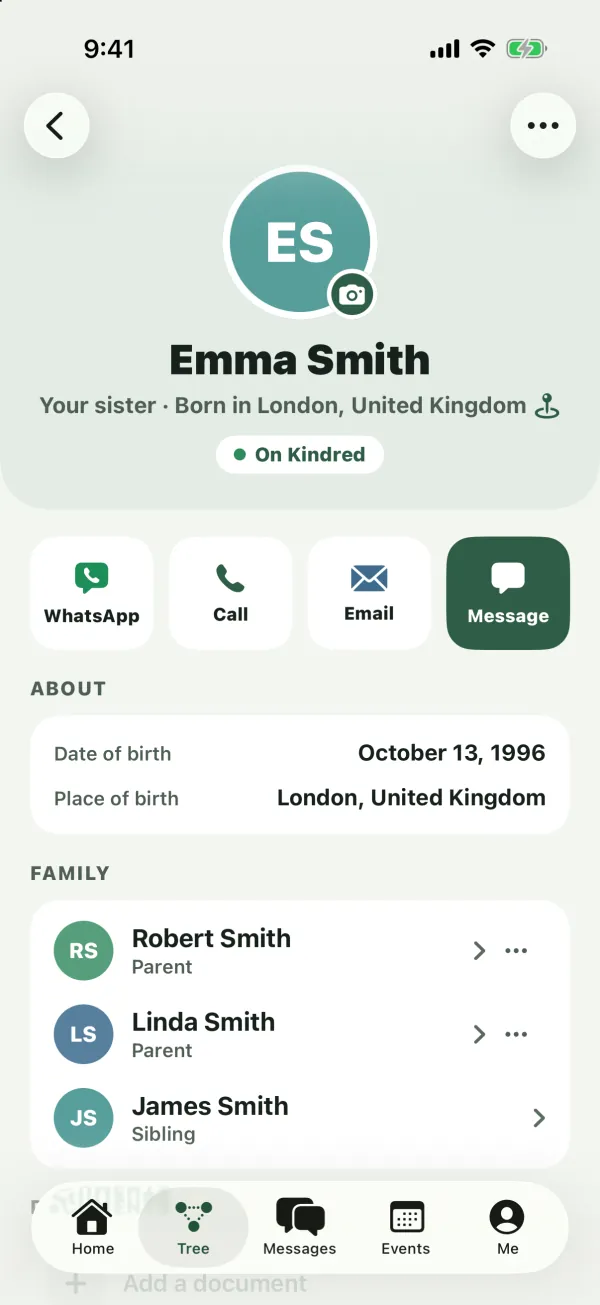
Contact buttons
For living people, a row of buttons lets you reach them in one tap:
- WhatsApp opens a WhatsApp chat with their number.
- Call starts a phone call (on Android, it opens the dialer with the number filled in).
- Email opens a new email to them in your mail app.
- Message opens a Kindred message to them. It only appears when they’ve joined Kindred, and not on your own page.
When the person is on Kindred, the buttons use the phone number, WhatsApp number and email from their own profile. Otherwise, they use the Email and Phone saved on their card. A button only appears when there’s something to use, so a person with no details shows no contact buttons.
Note: WhatsApp, calls and email go through your own apps, from your own number and address. Kindred doesn’t see those conversations.
Birthday card
When a living person’s birthday is within the next 14 days, a card shows Turns 40 in 3 days (or Turns 40 today) with their full date of birth. If they’re on Kindred, a Wish button opens a message to them. See Events and birthdays.
Invite and “This is me”
- Invite James to Kindred appears for living people who haven’t joined yet, for owners, admins and collaborators. See Invite your family.
- This is me appears when nobody in the tree is marked as you yet. Tap it on your own card so the tree centers on you and relationship words like “Your sister” are worked out from you.
About
The About card lists whichever of these are filled in: Date of birth, Place of birth, Grew up in, Occupation and Date of passing, followed by their story.
Family
The Family card lists their relatives, each with a label: Parent, Partner, Sibling, Child and Grandchild. Tap a relative to open their page. The ⋯ button on parent, partner and child rows lets you fix or remove that relationship. See Add relatives to your tree.
Other trees
- Also in lists your other trees where this person also appears. Synced means the two are linked and kept the same. Same person? means Kindred found a likely match, and Link connects them.
- Family in your other trees lists this person’s relatives from your other trees who aren’t in this one yet, with an Add here button.
Both are explained in Keep several family trees.
Documents and adding family
Further down are Documents (see below), the Add a parent, Add a child, Add a partner and Add a sibling buttons, and Add a relative of James. On the web, a link to James’s history sits at the bottom.
Who can edit whom
What you can change depends on your role in the tree:
- Owners and admins can edit everyone.
- Collaborators can edit their own branch of the family:
- the person marked as them,
- their partners,
- their parents, grandparents and every ancestor above,
- their children, grandchildren and every descendant below,
- the partners of all those ancestors and descendants,
- their brothers and sisters,
- and anyone they added themselves. A collaborator who isn’t marked as anyone in the tree can edit only the people they added.
- Viewers can look at everything but can’t change anything.
When you can’t edit someone, their page has no camera badge, no Edit option and no Add buttons. If you try anyway, Kindred shows “You can only edit people in your own branch of the family.” Ask an admin for help, or to change your role. See Members and roles.
Tip: Being marked as yourself matters for collaborators. Use This is me on your own card so your branch is worked out correctly.
Edit details
- Open the person.
- Open the more options menu (⋯) at the top right of the page or panel and choose Edit.
- Change what you need in Edit details.
- Tap Save. To leave without saving, tap Cancel (or close the window on the web).
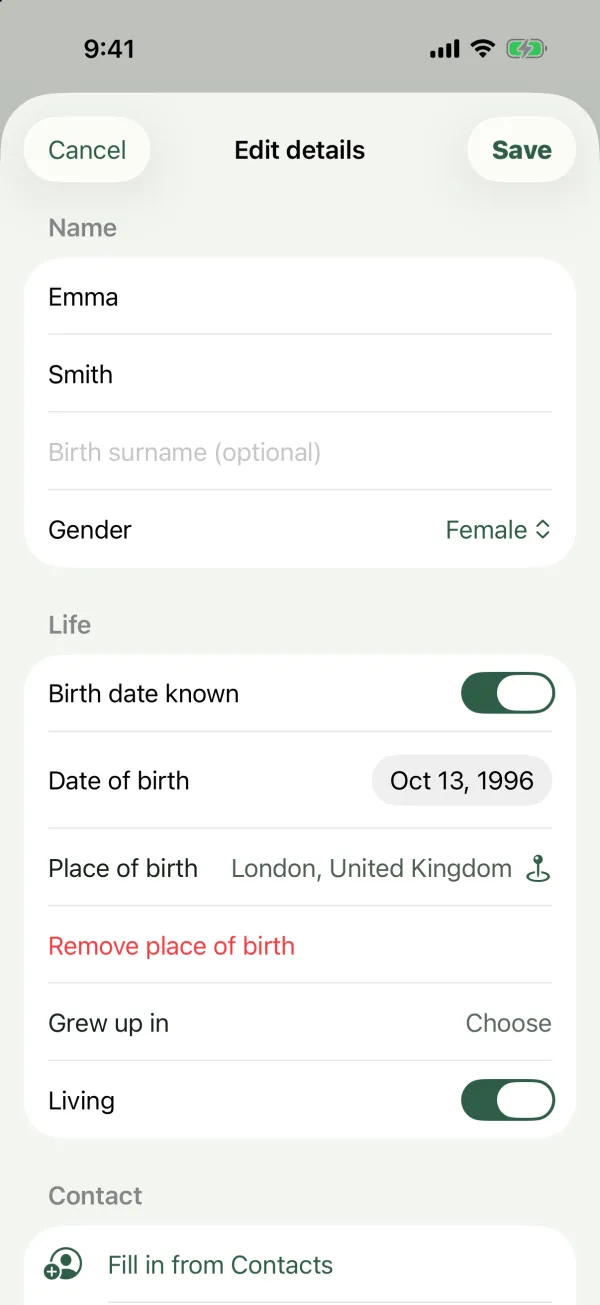
Every field
Name
- First name. Required.
- Last name. Their current surname.
- Birth surname (optional). The surname they were born with, such as a maiden name. It shows on the tree in parentheses after the last name, and search finds people by it.
- Gender: Male, Female, Other or Not specified. It sets words like “Your sister” or “Your brother”; with Not specified, Kindred says “Your sibling”.
Life
- Birth date known, then Date of birth. Turn the switch off to remove the date.
- Place of birth. Tap Choose and search for a city, town or village. Pick a result to place a pin on the family map, or tap Use “…” (no map pin) to keep the name as typed, for example a village that no longer exists. Remove place of birth clears it.
- Grew up in. Where they grew up, if different. It works the same way, with Remove where they grew up.
- Living. Turn it off for someone who has passed away.
- Date of passing known, then Date of passing. Only shown when Living is off.
Contact (only for living people)
- Fill in from Contacts on iPhone, iPad and Android, and in some browsers on the web. See Fill in from your phone’s contacts.
- Email.
- Phone.
The note under this section reads: “Used for invitations and family messages. Only your family can see it.”
More
- Occupation. (On the web, it’s in the Life section.)
- Their story. Stories, memories, what made them special.
If the person is linked to the same person in another of your trees, a note at the bottom of the form names that tree: your changes are copied there too.
Rules Kindred checks
- A date of birth or passing can’t be in the future.
- A date of passing can’t be before the date of birth.
- An email address must be valid.
If something doesn’t pass, the form shows what to fix and nothing is saved.
Note: Turning Living off hides the Contact section, and the person’s email and phone are removed when you save. This keeps contact details only for people who can be reached.
Where your edits go
- Everyone in the tree sees the new details.
- Each edit is recorded in Edit history with your name and what changed, and can be undone from there. See Change history and undo.
- If the person is linked to other trees, the same details update in those trees, and each tree’s history records it.
Photos
Anyone who can edit a person can add or change their photo.
Add or change a photo
- Open the person.
- Tap their picture (the one with the camera badge).
- Choose a photo from your library (on the web, from your files).
- In Move and scale, drag the photo to position it in the circle, and zoom in:
- iPhone, iPad and Android: pinch with two fingers.
- Web: use the slider under the photo, or your mouse wheel.
- Tap Choose. The photo is saved and shows on the tree and everywhere else in Kindred.
On iPhone, iPad and Android, you can also press and hold the picture and choose Change photo.
Remove a photo
- iPhone, iPad and Android: press and hold the picture and choose Remove photo.
- Web: click Remove photo under the picture.
Without a photo, the person shows their initials on their family color.
Where photos come from
- A photo added on the person’s card always comes first.
- If there isn’t one and the person has joined Kindred, the tree shows the profile picture from their own account. They change that from the Me tab. See Your profile.
- A contact’s picture from Fill in from Contacts becomes the person’s photo when you save, if they don’t have one yet.
Photo changes are recorded in Edit history. When a person is linked across several of your trees, they share the same photo.
Documents
Keep birth certificates, letters, old records and other papers with the person they belong to.
Who can see and add documents
- Everyone in the tree, viewers included, can open a person’s documents.
- People who can edit the person can add documents.
- A document can be deleted by people who can edit the person, by owners and admins, and by whoever added it.
The Documents section only appears when there’s at least one document, or when you can add one.
Add a document
- Open the person and scroll to Documents.
- Tap Add a document and pick a source:
- Scan a document (iPhone, iPad and Android). The camera finds the page edges and straightens them. Scan as many pages as you need; they’re saved together as one PDF.
- Take a photo. On the web, this opens the camera on phones and a file picker on computers.
- Choose a photo (iPhone, iPad and Android), from your photo library.
- Choose a file: a PDF or an image.
- In Name this document, type a name, for example “Birth certificate”. When you choose a file, its file name is filled in for you. Left blank, it’s called “Document”.
- Tap Save.
Documents can be PDFs or images (JPEG, PNG, HEIC or WebP), up to 25 MB each.
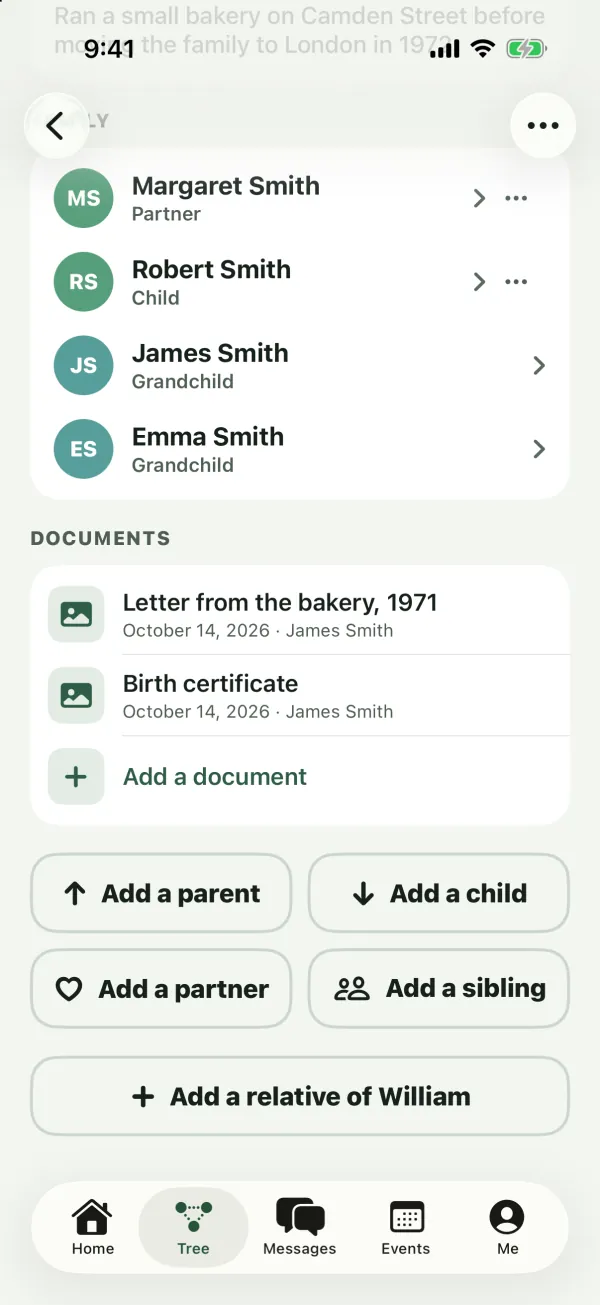
Open a document
Tap a document to open it. Each one shows its name, the date it was added and who added it.
- iPhone and iPad: it opens in a preview, where you can also share or print it.
- Android: it opens in a viewer app on your phone.
- Web: it opens in a new browser tab.
Delete a document
- iPhone and iPad: press and hold the document and tap Delete.
- Android: press and hold the document and tap Delete.
- Web: click ⋯ on the document’s row and choose Delete.
Kindred asks you to confirm, for example “Delete “Birth certificate”?”. Adding and deleting documents are both recorded in Edit history.
The more options menu
The ⋯ button at the top of a person’s page holds:
- Edit, for people you can edit.
- Edit history, every change made to this person.
- Start a family tree for James…, to copy this person’s side of the family into a new tree (owners, admins and collaborators). See Keep several family trees.
- Keep separate in this tree, when the person is linked to another tree and you can edit them. It stops this copy from syncing.
- This is me, to mark the person as you. Anyone can do this while nobody in the tree is marked as them. If you’re already marked as someone else, only owners and admins can move it, and Kindred asks “You’re shown as Emma Smith. Show James Smith as you instead?”. People who are linked to someone else’s account can’t be claimed.
- This isn’t me, on your own card, to remove that link.
- Delete, when you’re allowed to remove the person (see below).
Remove someone from the tree
Who can delete a person
- Owners and admins can delete anyone.
- Collaborators can delete people they added themselves.
- Nobody can delete a person who is linked to a family member’s Kindred account (usually shown as On Kindred). They stay in the tree as long as that account is linked.
- Viewers can’t delete anyone.
Delete a person
- Open the person.
- Tap ⋯, then Delete.
- Confirm Remove James Smith from the tree? by tapping Delete.
What’s removed
- The person, their photo and their documents.
- Every relationship line to them. Their relatives stay in the tree.
If the same person is linked into your other trees, only this tree’s copy is removed. The deletion is recorded in Edit history, but it can’t be undone from there. To bring someone back, add them again.
Tip: Want to fix a wrong link without removing the person? Use the ⋯ button on the relative’s row under Family and choose Remove relationship. Both people stay in the tree.
Common questions
Why can’t I edit my aunt, but I can edit my grandmother?
Collaborators edit their own line: ancestors, descendants, siblings and partners of those. Aunts, uncles, cousins, nieces and nephews belong to other branches, unless you added them yourself. An admin can edit them, or can make you an admin.
Why can’t I see the Edit option?
Either you’re a viewer, or the person is outside your branch of the family. See “Who can edit whom” above.
Why is there a photo, but Remove photo doesn’t change it?
The picture you see may be the profile picture from that person’s own Kindred account. Only they can change it, from the Me tab. Adding a photo on their card shows that one instead.
Their email disappeared after I saved. Why?
You turned Living off. Kindred only keeps contact details for living people, so the email and phone were removed.
Can I see who changed a detail?
Yes. Open the person, tap ⋯ and choose Edit history. Each change shows who made it, when, and the old and new values. See Change history and undo.
Who can see contact details?
Only members of the tree, whatever their role. Kindred families are private by invitation. See Privacy and safety.